User Guide
NUS Classes is a desktop app for NUS Computing professors to manage their tasks and contacts. It includes task management features such as creating tasks, tagging tasks, assigning contacts to tasks, and marking tasks as complete or incomplete. It also includes contact management features such as finding contacts, assigning contacts to specific tasks and tagging contacts.
NUS Classes also provides a simple alert feature for tasks by displaying tasks in different color based on the urgency of the task. Tasks that are overdue are marked as red, whereas, tasks that are nearing deadline are marked as yellow.
NUS Classes is optimized for use via a Command Line Interface (CLI) while still having the benefits of a Graphical User Interface (GUI). Using NUS Classes can get your contact management tasks done faster than traditional GUI apps, saving time on otherwise tedious administrative tasks.
This User Guide has been conveniently catergorised into Contact Features, Task Features and Other Features. This will help you locate quickly the command that you want to know more about.
Blue text boxes are additional tips and notes to enhance your experience with NUSClasses, while yellow text boxes are warnings that will cause NUSClasses to not function as intended. Graphics are also available to further aid us visually.
Hope you’ll be satisfied using NUSClasses 
Table of Contents
- Quick Start
-
Features
- Help
- Contact Features
- Task Features
- Other Features
- FAQ
- Prefix Summary
- Command Summary
Quick start
-
Ensure you have Java
11or above installed in your Computer. -
Download the latest
NUSClasses.jarfrom here. -
Copy the file to the folder you want to use as the main folder for your NUS Classes manager.
-
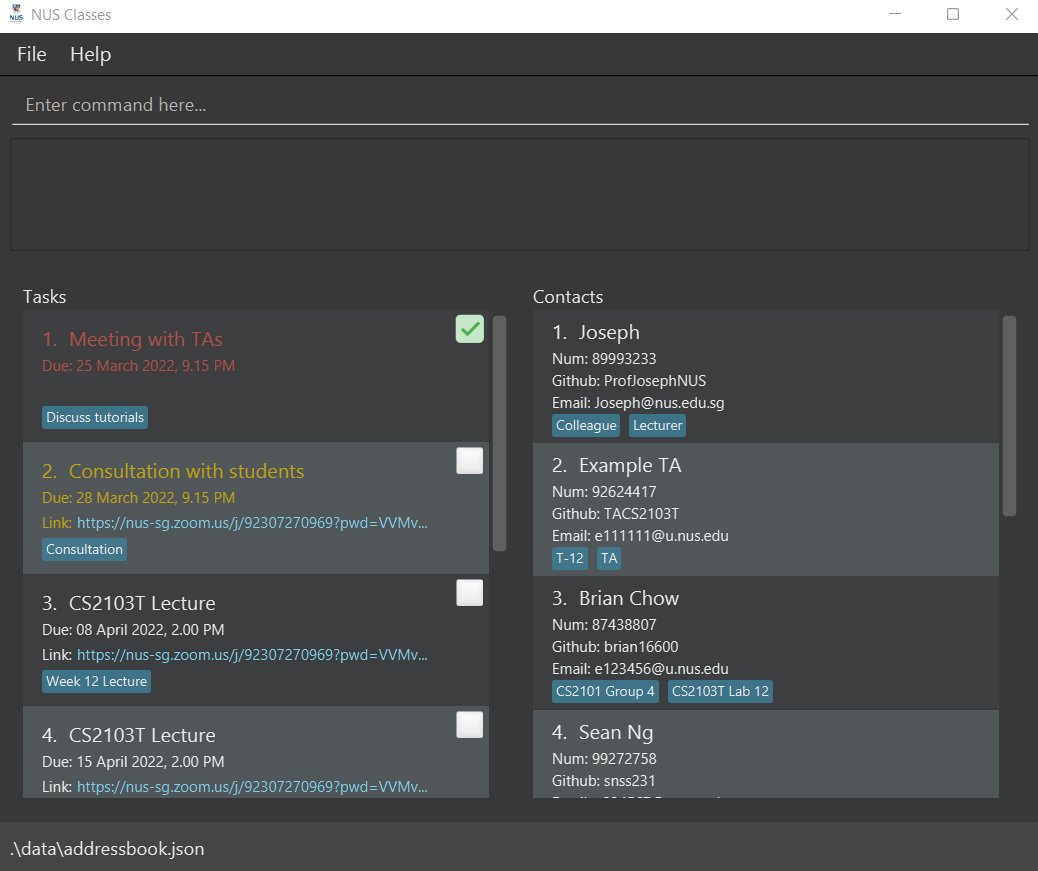
Double-click the file to start the app. The GUI similar to below should appear in a few seconds. Note how the app contains some sample data.
-
Type the command in the command box and press
Enterto execute it. e.g. typinghelpand pressingEnterwill open the help window.
Some example commands you can try:-
listc: Lists all contacts. -
addcn/John Doe p/98765432 e/johnd@u.nus.edu u/john123 t/Schoolmate: Adds a contact namedJohn Doeto NUS Classes, with emailjohnd@u.nus.edu, Github Usernamejohn123and tagSchoolmate -
deletec3: Deletes the 3rd contact shown in the current contact list. -
assign1 p/ 2: Assigns the contact at index 2 to the task at index 1. -
clear: Clears all contacts and tasks from NUS Classes -
exit: Exits the app.
-
-
Refer to the Features below for details of each command.
Features
 Notes about the command format:
-
Words in
UPPER_CASEare the parameters to be supplied by you.
e.g. inaddc n/CONTACTNAME,CONTACTNAMEis a parameter which can be used asadd n/John Doe. -
Items in square brackets are optional.
e.g.addc n/CONTACTNAME p/PHONENUMBER e/EMAIL u/GIT_USERNAME [t/TAG]…can be used asn/John Doe t/friendor asn/John Doe. -
Items with
… after them can be used multiple times including zero times.
e.g.[t/TAG]…can be used ast/friend,t/friend t/familyetc. -
Parameters can be in any order.
e.g. if the command specifiesn/NAME p/PHONE_NUMBER,p/PHONE_NUMBER n/NAMEis also acceptable. -
If a parameter is expected only once in the command but you specified it multiple times, only the last occurrence of the parameter will be taken.
e.g. if you specifyp/12341234 p/56785678, onlyp/56785678will be taken. -
Extraneous parameters for commands that do not take in parameters (such as
help,listc,exitandclear) will be ignored.
e.g. if the command specifieshelp 123, it will be interpreted ashelp. -
INDEXrefers to a single non-zero positive integer only, and within the bounds of the number of contacts/number of tasks. Values such as-1,abc, or2 abcdefgare invalid. -
Some examples have images of the usage of the commands in the User Interface. This is to allow you to easily visualize and understand what the commands do in that context.
Viewing help : help
Shows a message with the link to the User Guide for reference.

Format: help
Contact Features
Adding a contact: addc
Adds a contact with basic details like name, phone number, email and Github Username. Tags are optional but can be added as well for easier contact management.
Format: addc n/CONTACTNAME p/PHONENUMBER e/EMAIL u/GITHUB_USERNAME [t/TAG]…
Examples:
addc n/john p/12345678 e/john@nus.edu.sg u/john123 t/Schoolmateaddc n/mary p/87654321 e/mary@gmail.com u/maryCS t/Teammate t/Classmate
 Notes:
-
Contacts with the same names are allowed. Some modules may be big, so there may be students with the same name!
-
You can add multiple tags to a contact for easier management, as some students/TAs might be taking your other modules too. Just put t/ before every tag!
-
Make sure the contact’s email is in the correct format, i.e. abd@gmail.com
 , abd@yahoo
-
Make sure the contact’s phone number is at least 3 digits long! Phone numbers with > 8 digits are allowed since international phone numbers have different numbers of digits.
-
Github usernames can only consist of alphanumeric characters or single hyphens, and cannot begin or end with a hyphen. Usernames such as
john123andjo-hn123are valid, but usernames such asjohn123-,-john123andjo--hn123are invalid.
Listing all contacts : listc
Shows a list of all contacts in NUS Classes.
Format: listc
Tip:
You will find this command useful after using findc
Editing a contact : editc
Edits an existing contact in NUS Classes.
Format: editc INDEX [n/NAME] [p/PHONE] [e/EMAIL] [u/GITHUB_USERNAME] [t/TAG]…
- Edits the contact at the specified
INDEX. - The index refers to the index number shown in the displayed contact list.
- At least one of the optional fields must be provided.
 Caution:
-
The index must be a positive integer 1, 2, 3, …
-
When editing tags, the existing tags of the contact will be removed i.e. adding of tags is not cumulative.
Examples:
-
editc 2 n/Betsy Crower t/Edits the name of the 2nd contact to beBetsy Crowerand clears all existing tags. -
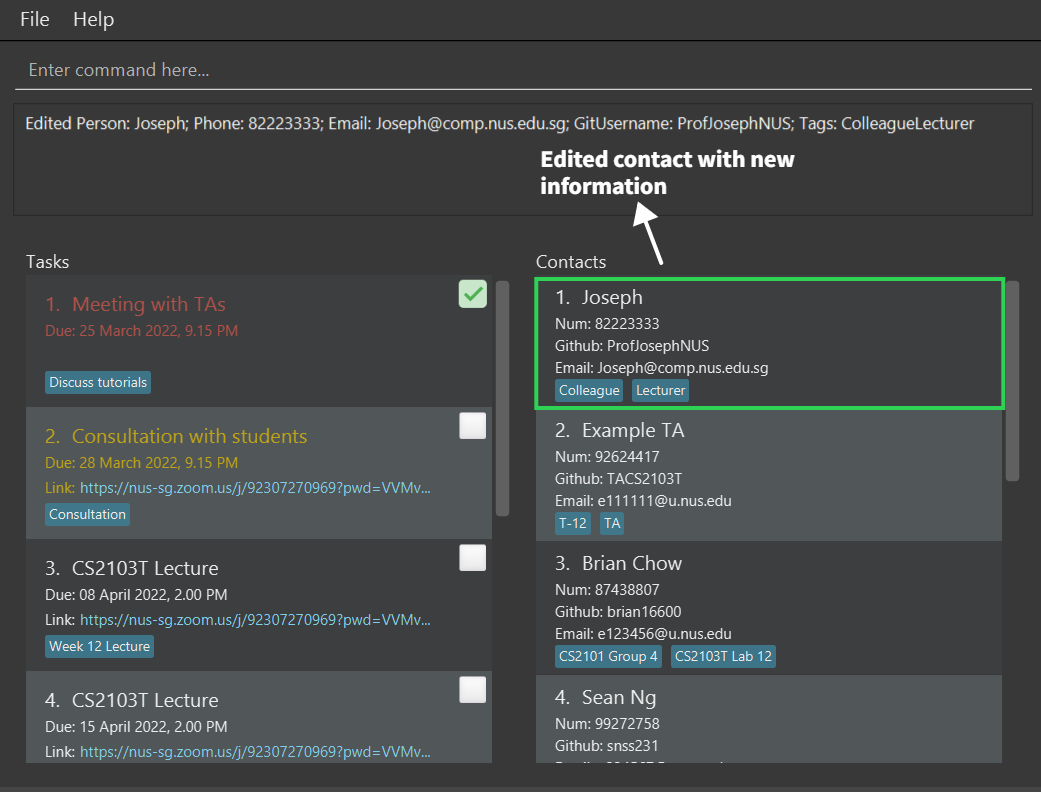
editc 1 p/82223333 e/Joseph@comp.nus.edu.sgEdits the phone number and email address of the 1st contact to be82223333andJoseph@comp.nus.edu.sgrespectively.
Tip:
You can remove all the contact’s tags by typing t/ without specifying any tags after it. Useful when removing outdated tags from a contact.
Finding contacts: findc
Find contacts whose names and/or tags contain any of the given keywords.
Format: findc KEYWORD [MORE_KEYWORDS]…
-
KEYWORDcan be used to search for matching words in both tags and names of contacts. - The search is case-insensitive. e.g
johnwill matchJohn - The order of the keywords does not matter. e.g.
Hans Bowill matchBo Hans - Only full words will be matched e.g.
Hanwill not matchHans - Persons matching at least one keyword will be returned (i.e.
ORsearch). e.g.hans marywill returnHans Bo,Mary Sue
Examples:
-
findc JohnreturnsjohnandJohn Doe. -
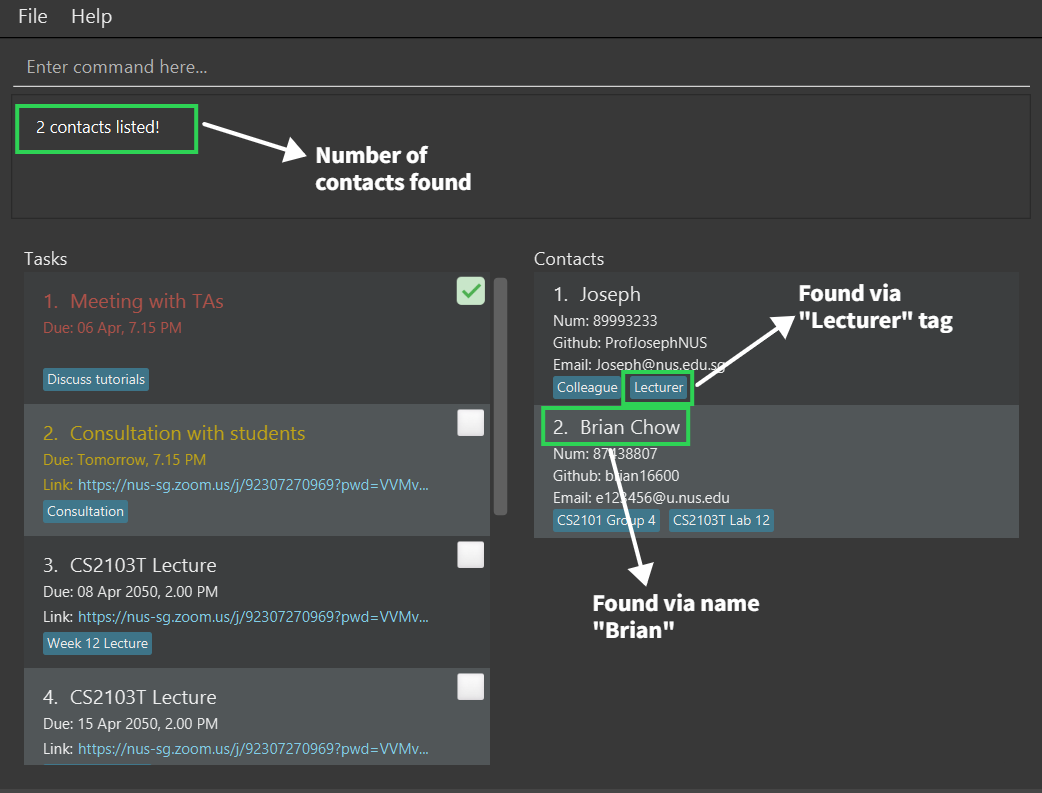
findc brian lecturerreturnsBrian Chow,Josephwho has a tag ofLecturer.
Deleting a contact : deletec
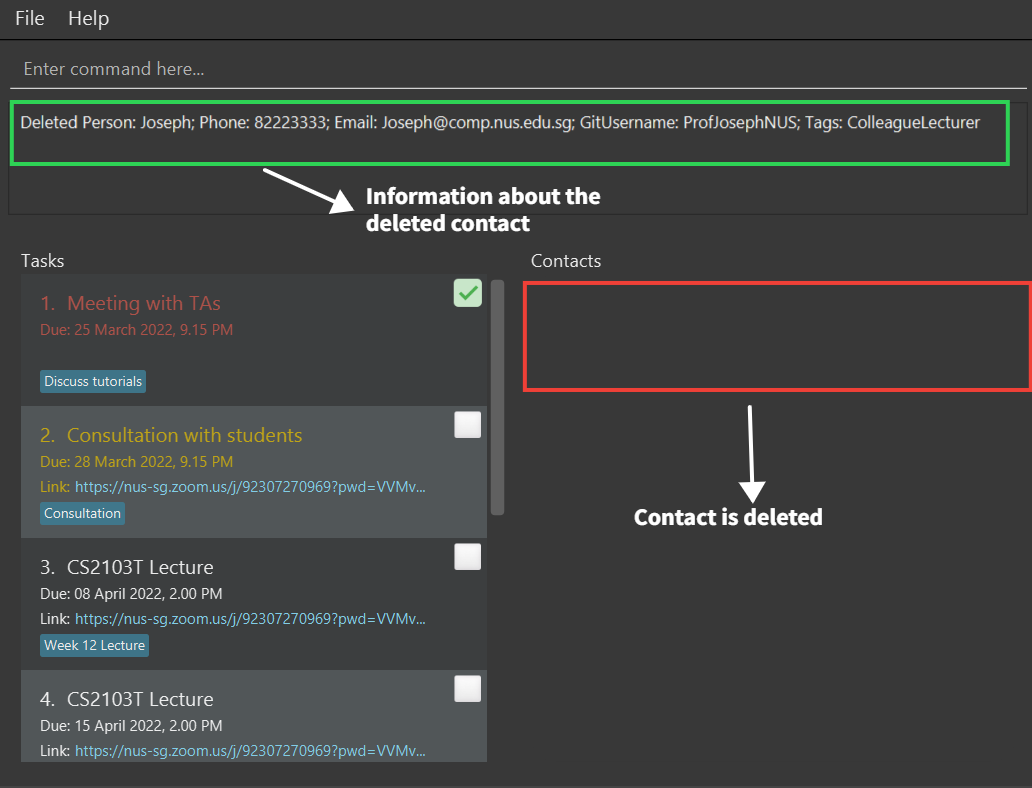
Deletes the specified contact from NUS Classes.
Format: deletec INDEX
- Deletes the contact at the specified
INDEX. - The index refers to the index number shown in the displayed contact list.
Caution:
The index must be a positive integer 1, 2, 3, …
Examples:
-
listcfollowed bydeletec 2deletes the 2nd contact in NUS Classes. -
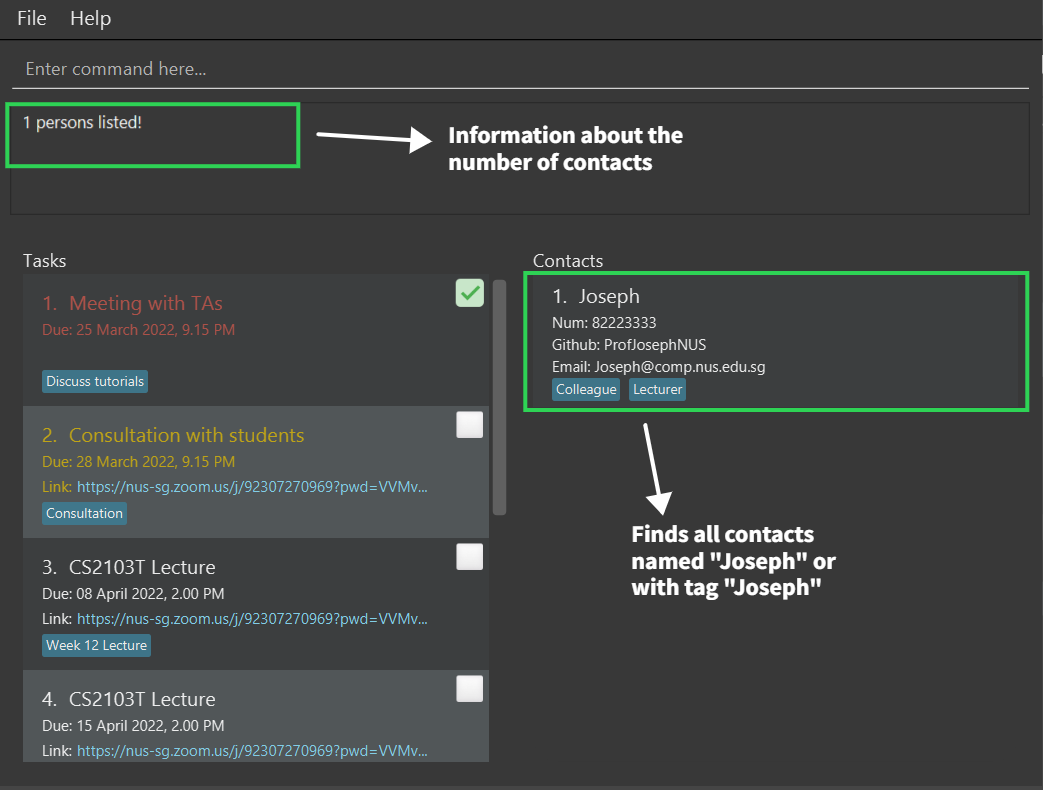
findc Josephfollowed bydeletec 1deletes the 1st contact in the results of thefindccommand.
Task Features
Adding a task: addt
Adds a task for a datetime with a tag.
Format: addt tn/TASKNAME dt/DATETIME [ENDDATETIME] [t/TAG]… [z/LINK] [r/INTERVAL RECURRENCE]
- The format for TIME is in
dd-MM-yyyy HHmm.
Caution:
The task that you are creating cannot have duplicate tags, tags are unique for that specific task e.g. addt tn/Lecture dt/12-12-2022 1200 t/Weekly Lecture t/Weekly Lecture would be invalid.
Notes about TASK:
-
Two Tasks with the same
TASKNAMEis valid. This is to allow for multiple tasks with different dates to be valid, such asCS2103T Lectureat04/04/2022and anotherCS2103T Lectureat11/04/2022. -
You can create overdue Tasks (with
DATETIMEbefore today) if you wish to remind yourself of overdue tasks!
Notes about INTERVAL RECURRENCE:
-
INTERVALrefers to the number of days for next occurrence of the task:
e.g.INTERVAL= 5 (days) for a task on 01-01-2022 would next occur on 05-01-2022. - For
INTERVAL, the valuesdaily,weekly,monthly,quarterlyandannuallyare accepted. -
RECURRENCErefers to how many cycles the task is to be repeated:
e.g.RECURRENCE= 5 (cycles) with anINTERVAL= 7 (equivalent toweekly) means that the task repeats weekly for 5 cycles.
Examples:
-
addt tn/Meeting dt/17-03-2022 1800 t/SchoolAdds a task called Meeting for17th March 2022, 6pmat School. -
addt tn/Consultation dt/19-03-2022 1500, 19-03-2022 1600Adds a task called Consultation taking place from19th March 2022 3-4pm. -
addt tn/CS2103 Lecture dt/19-03-2022 1500, 19-03-2022 1600 z/https://nus-sg.zoom.us… r/weekly 12Adds a task called CS2103 Lecture taking place from19th March 2022 3-4pmthat occursweeklyfor12 cycleswith themeeting link. -
addt tn/Running dt/12-02-2022 1900 t/Track r/3 5Adds a task called Running for12th February 2022, 7pmthat occursevery 3 daysfor5 cycles.
Editing a task: editt
Edits an existing task in the task list.
Format: editt INDEX [tn/TASKNAME] [dt/DATETIME, ENDDATETIME*] [z/LINK] [t/TAG]…
- Edits the task at the specified
INDEX. The index refers to the index number shown in the displayed task list. - At least one of the optional fields must be provided.
- Existing values will be updated to the input values.
Caution:
The index must be a positive integer 1, 2, 3, …
Examples:
-
editt 1 tn/Meeting with TAsEdits the name of the 1st displayed task to beMeeting with TAs. -
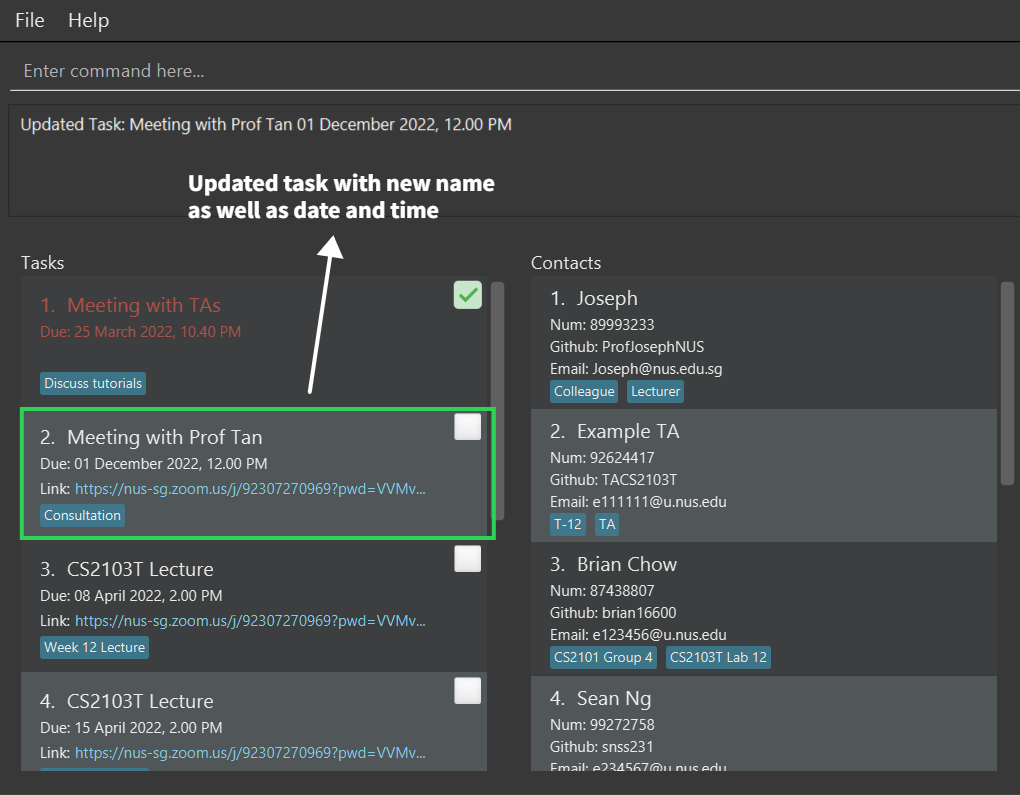
editt 2 tn/Meeting with Prof Tan dt/01-12-2022 1200, 01-12-2022 1300Edits the name of the 2nd displayed task to beMeeting with Profs Tanand the date to be01 Dec 2022, 12pm-1pm.
-
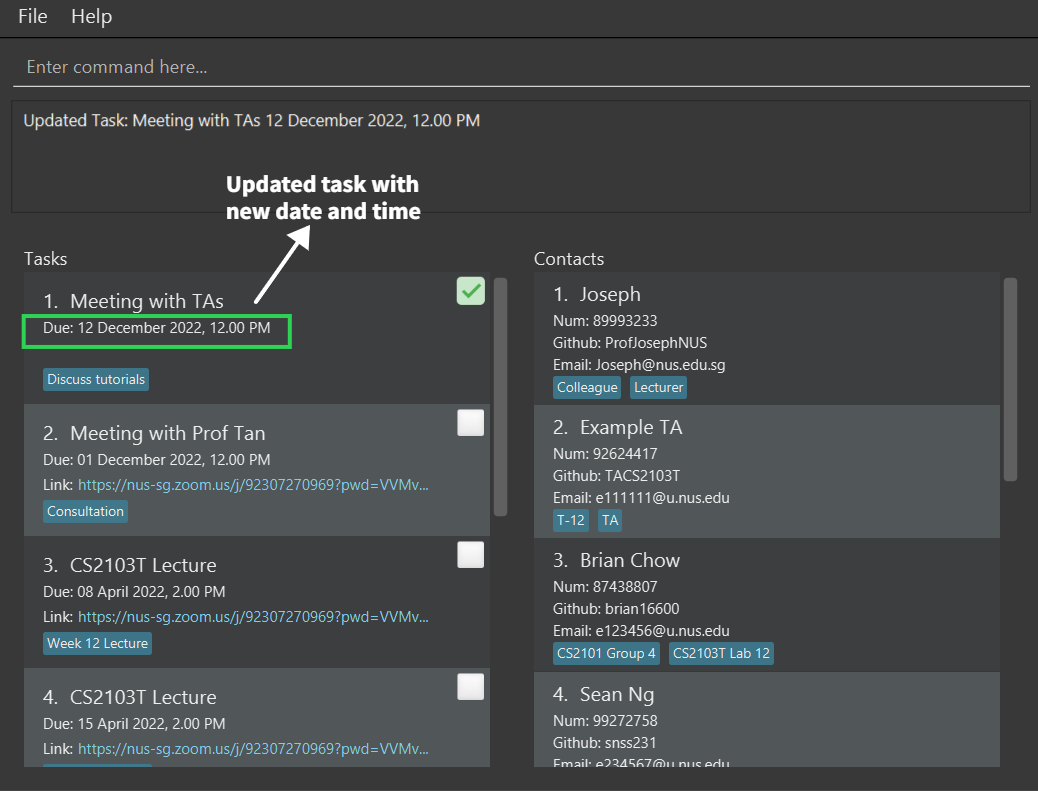
editt 1 dt/12-12-2022 1200, 12-12-2022 1400Edits the datetime of the 1st displayed task to be on12 Dec 2022, 12-2pm.
Tips:
- If there’s no need to change a certain field you can leave it out!
- The
ENDDATETIMEfield is optional.
Finding tasks: findt
You can find tasks either by 1) name and/or tags OR 2) date time range
Caution:
If your findt command contains both name KEYWORD and date time prefix dt/,
the command will ignore the KEYWORD and findt dt/ will take higher precedence.
e.g. findt meeting dt/12-12-2022 1200, 13-12-2022 1200 will be equivalent to
findt dt/12-12-2022 1200, 13-12-2022 1200
1. Finding tasks by name or tag: findt
Find tasks whose task names or tags contain any of the given keywords.
Format: findt KEYWORD [MORE_KEYWORDS]…
-
KEYWORDcan be used to search for matching words in both tags and names of tasks. - The search is case-insensitive. e.g
lecturewill matchLecture - The order of the keywords does not matter. e.g.
Lecture CS2103Twill matchCS2103T Lecture - Only full words will be matched e.g.
Tutwill not matchTutorial - Tasks matching at least one keyword will be returned (i.e.
ORsearch). e.g.Lecture Tutorialwill returnCS2103T Lecture,Tutorial 12
Examples:
-
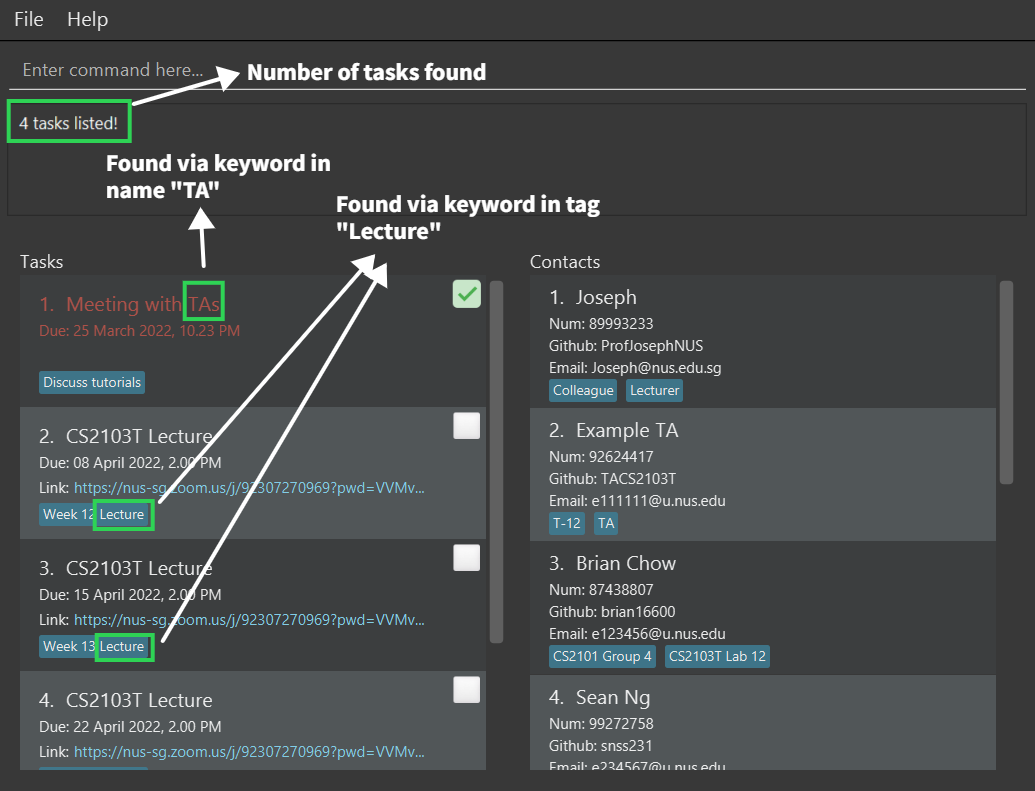
findt withreturnsConsultation with studentsandMeeting with invigilators. -
findt weekreturns all recurring instances ofCS2103T Lectureas their tags containWeek XX Lecture. -
findt TAs lecturereturnsMeeting with TAsand all recurrences ofCS2103T lecture.
Tip:
If you have many tasks, using findt will help you to keep organized!
2. Finding tasks by date: findt
Find tasks whose task falls in between the given dates (inclusive).
Format: findt dt/DATETIME1, DATETIME2
- The ordering of date doesn’t matter . e.g
dt/12-02-2022 0800, 13-03-2022 0800will matchdt/13-02-2022 0800, 12-03-2022 0800 -
DATETIME1andDATETIME2follows this format: dd-MM-yyyy HHmm - dd: Day; MM: Month; yyyy: Year; HH: Hour; mm: Minutes
-
HHmmis in 24-Hour format - Requires 2 date time inputs
Examples:
-
findt dt/14-04-2022 0900, 15-04-2022 0900Finds all tasks in between14th April 2022, 9amand15th April 2022, 9am, inclusive. -
findt dt/15-02-2022, 13-02-2022Finds all tasks in between13th February 2022, 12mnand15th February 2022, 11:59pm, inclusive. -
findt dt/20-12-2022, 21-12-2022 0900Finds all tasks in between20th December 2022 12mnand21st December 2022 9am, inclusive.
Tip:
DATETIME1 and DATETIME2 do not require HHmm if you wish to find tasks that fall on/in between the dates.
Assigning a contact to a task: assign
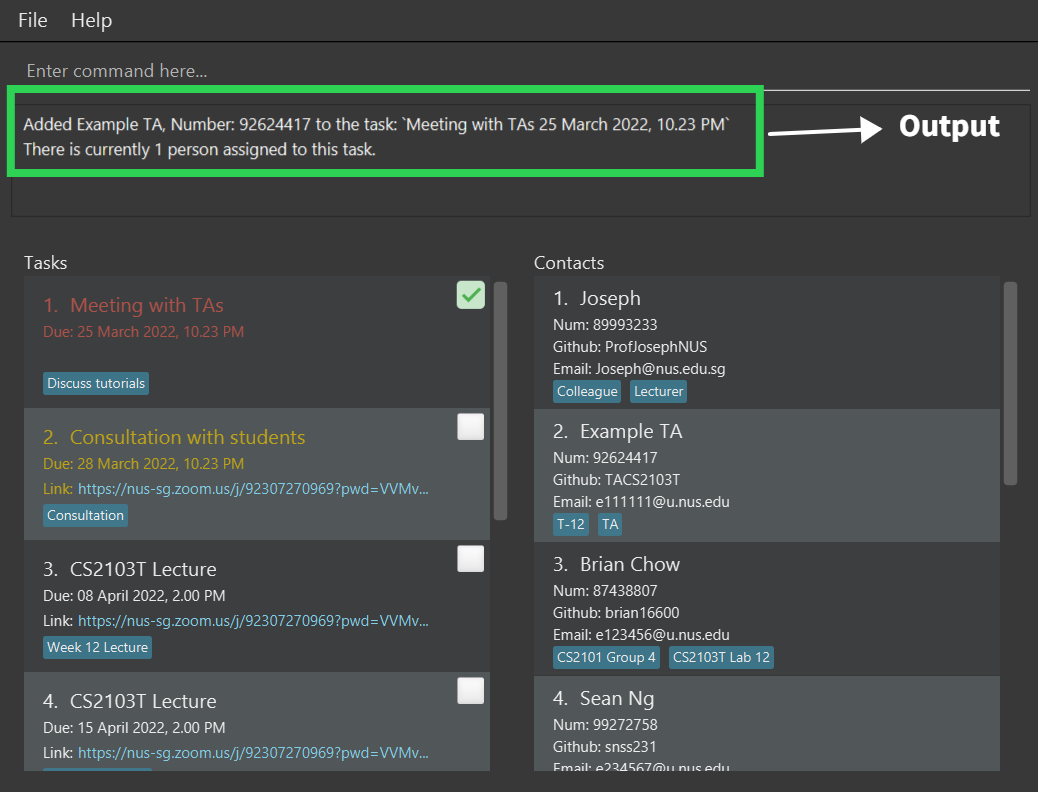
Assigns a contact in the contact list to a task.
Format: assign INDEX p/CONTACTINDEX
- Assigns the contact at the specified
CONTACTINDEXto the task atINDEX. - The indices refer to the index numbers shown in the corresponding displayed task/contact list.
Caution:
The index must be a positive integer 1, 2, 3, …
Examples:
-
assign 1 p/2Assigns the 2nd contact in the contact list to the 1st task in the task list.
Viewing contacts assigned to a task: view
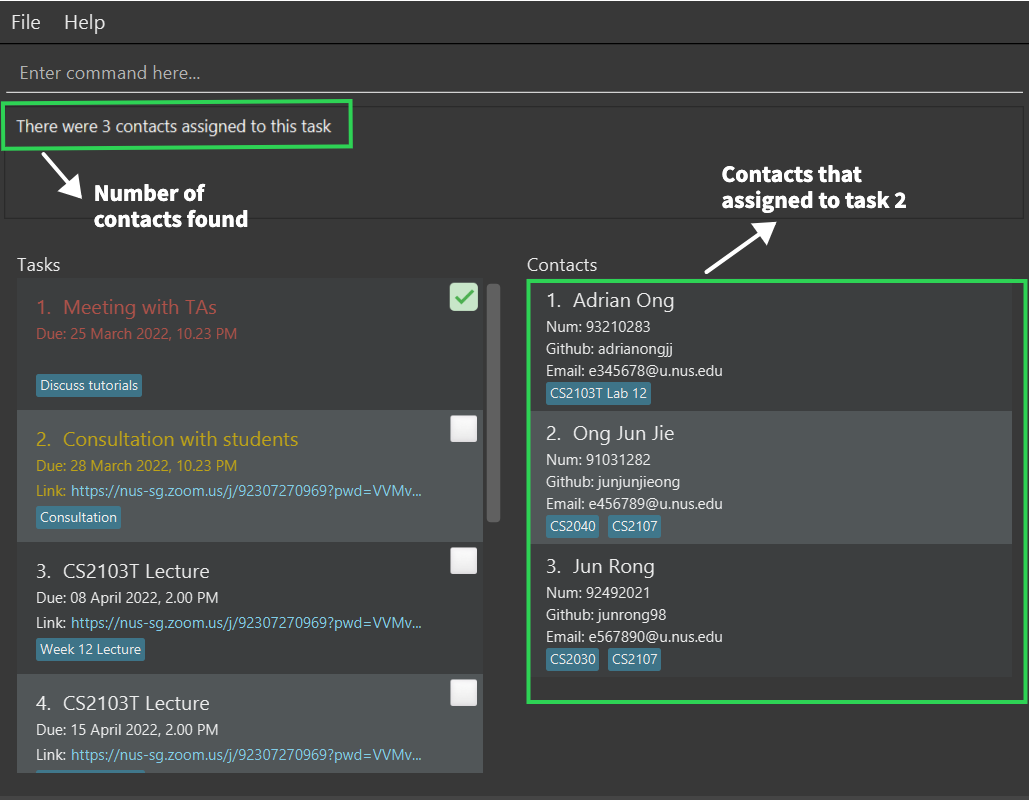
Display all contacts assigned to a given task.
Format: view TASKINDEX
- View all the contact assigned to the task located the specified
INDEX - The index refers to the index number shown in the displayed task list.
Caution:
The index must be a positive integer 1, 2, 3, …
Examples:
-
view 2will display all contacts assigned to the 1st task in the task list.
Unassigning a contact from a task: unassign
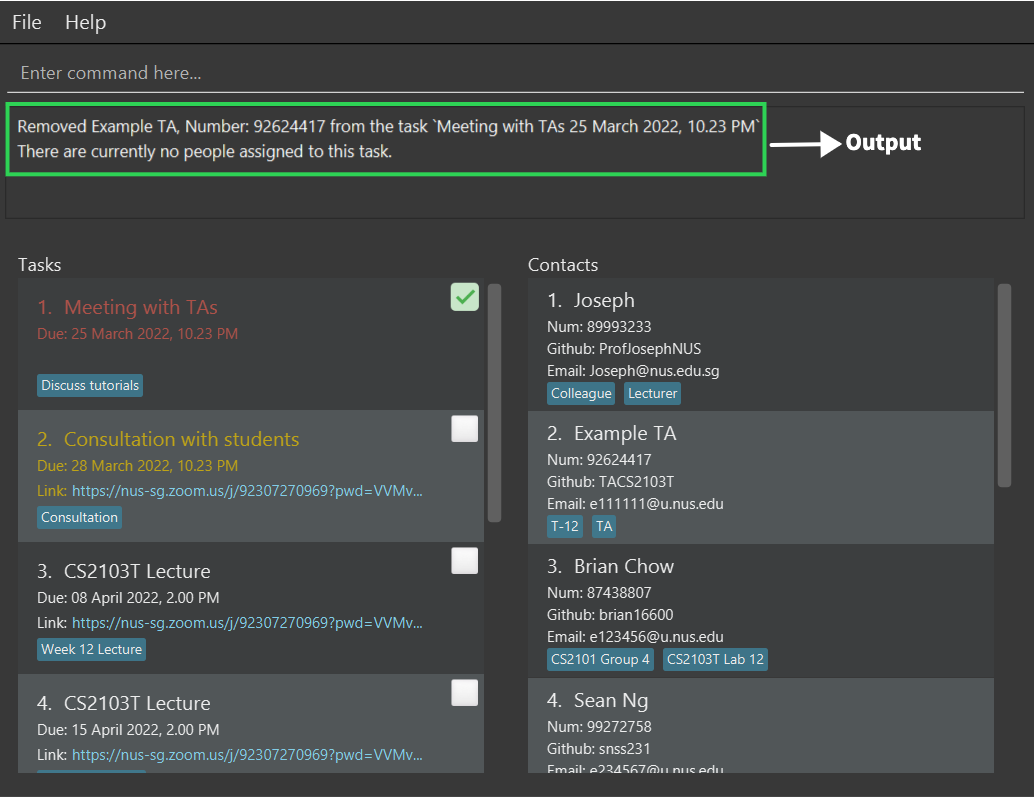
Unassigns a contact in the contact list from a task.
Format: unassign INDEX p/CONTACTINDEX
- Unassigns the contact at the specified
CONTACTINDEXto the task atINDEX. - The indices refer to the index numbers shown in the corresponding displayed task/contact list.
- The
viewcommand can help you quickly identify which contacts are already assigned to a task.
Caution:
- The index must be a positive integer 1, 2, 3, …
- If the contact is not already assigned to the task, the operation will fail.
Examples:
-
unassign 1 p/2Unassigns the 2nd contact in the contact list from the 1st task in the task list.
Marking a task as done: mark
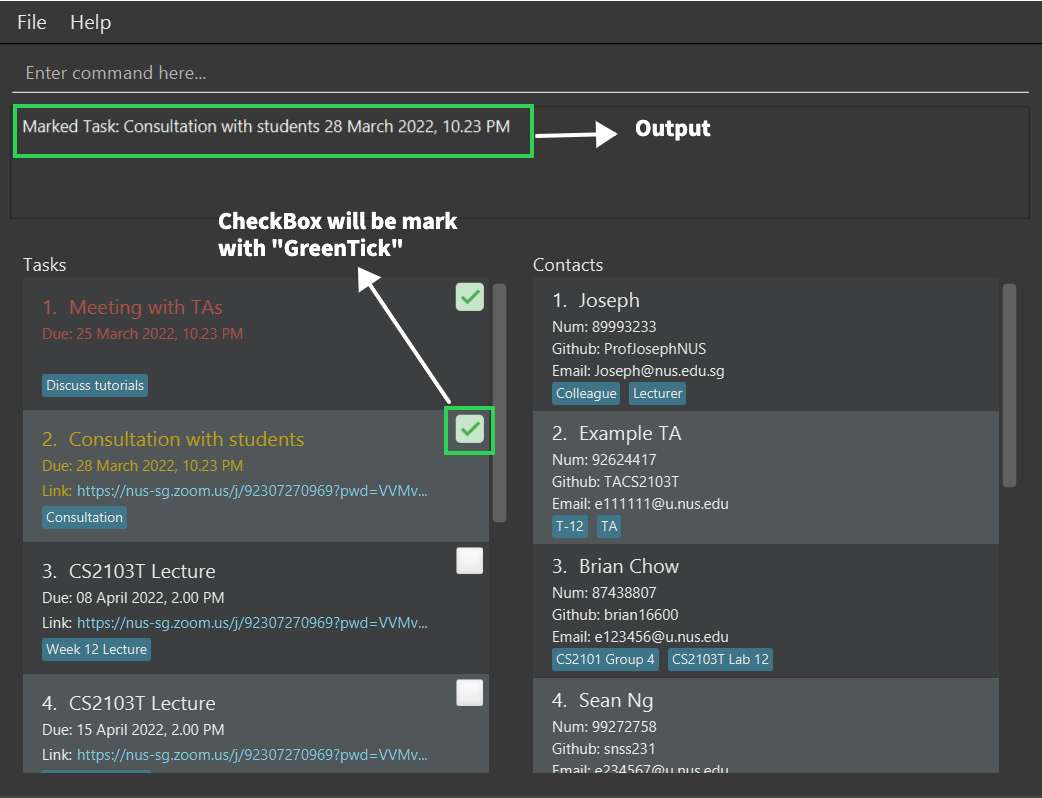
Marks the specified task from the task list as done.
Format: mark INDEX
- Marks the task at the specified
INDEX. - The index refers to the index number shown in the displayed task list.
- Icon will display a green tick to show the task is marked.
Caution:
The index must be a positive integer 1, 2, 3, …
Examples:
-
mark 2marks the task at index 2 as done.
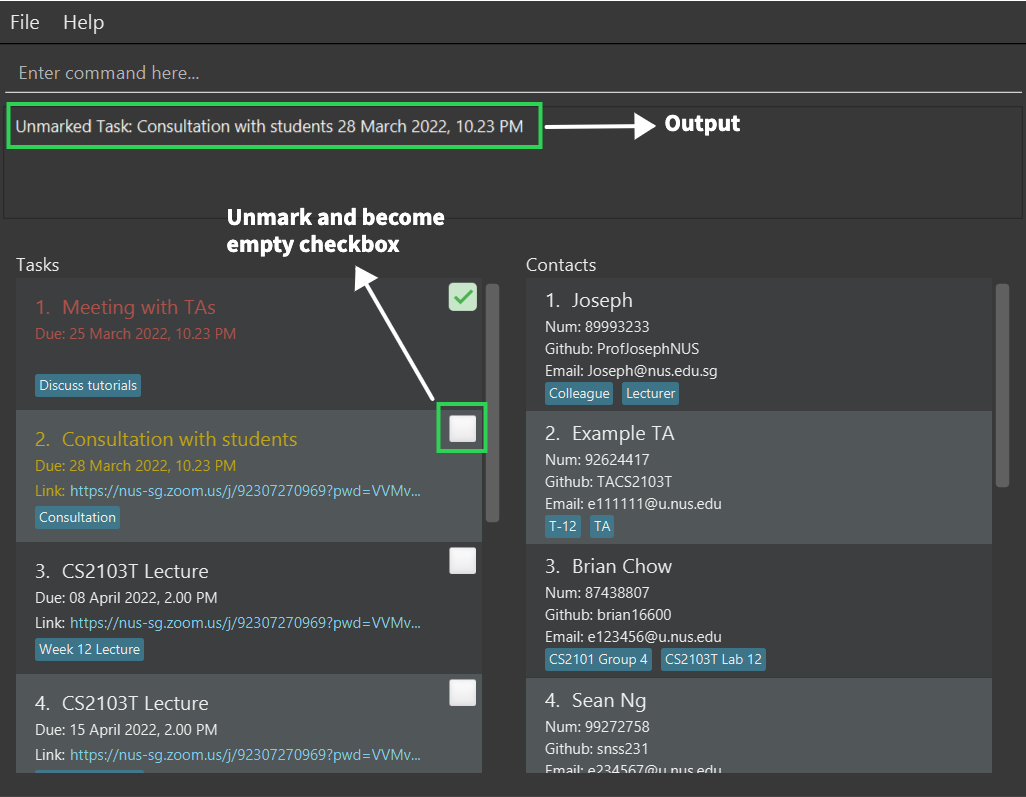
Unmarking a task as not done: unmark
Unmarks the specified task from the task list as not done.
Format: unmark INDEX
- Unmarks the task at the specified
INDEX. - The index refers to the index number shown in the displayed task list.
- Icon will display an empty white box to show the task is unmarked.
Caution:
The index must be a positive integer 1, 2, 3, …
Examples:
-
unmark 2unmarks the task at index 2 as not done.
Listing tasks : listt
Shows a list of all the tasks in the task list as per the specified filtering options. listt has the three following formats:
Format:
listt all/
Shows a list of all tasks in the task list.
listt c/
Shows a list of tasks that is marked as completed in the task list.
listt nc/
Shows a list of tasks that is not mark as completed in the task list.
Information:
- If more than 1 prefixes is present, system will prioritise `all/` -> `nc/` -> `c/` .
Deleting a task: deletet
Deletes the specified task from the task list.
Format: deletet INDEX
- Deletes the task at the specified
INDEX. - The index refers to the index number shown in the displayed task list.
Caution:
The index must be a positive integer 1, 2, 3, …
Examples:
-
listt all/followed bydeletet 1lists out all the tasks in NUS Classes, then deletes the task at index 1. -
findt lecturefollowed bydeletet 2lists out all tasks with the keywordlecture, then deletes the task at index 2.
Finding the tasks by keywordlecture: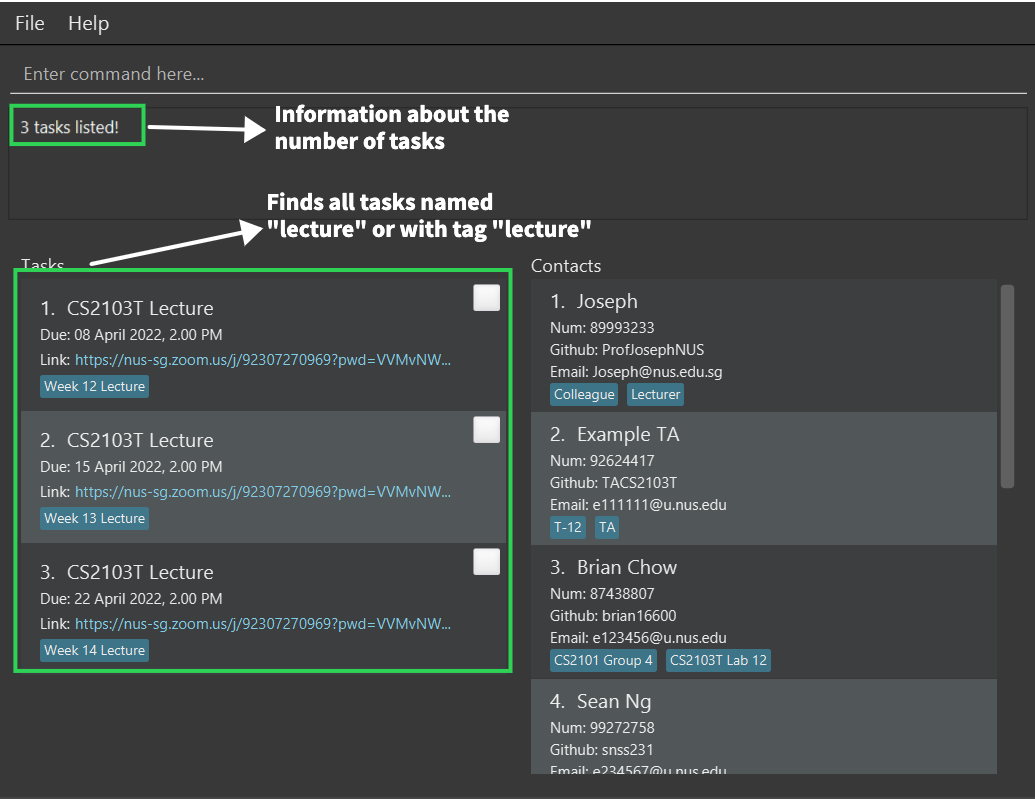
Deleting the lecture at index 2deletet 2: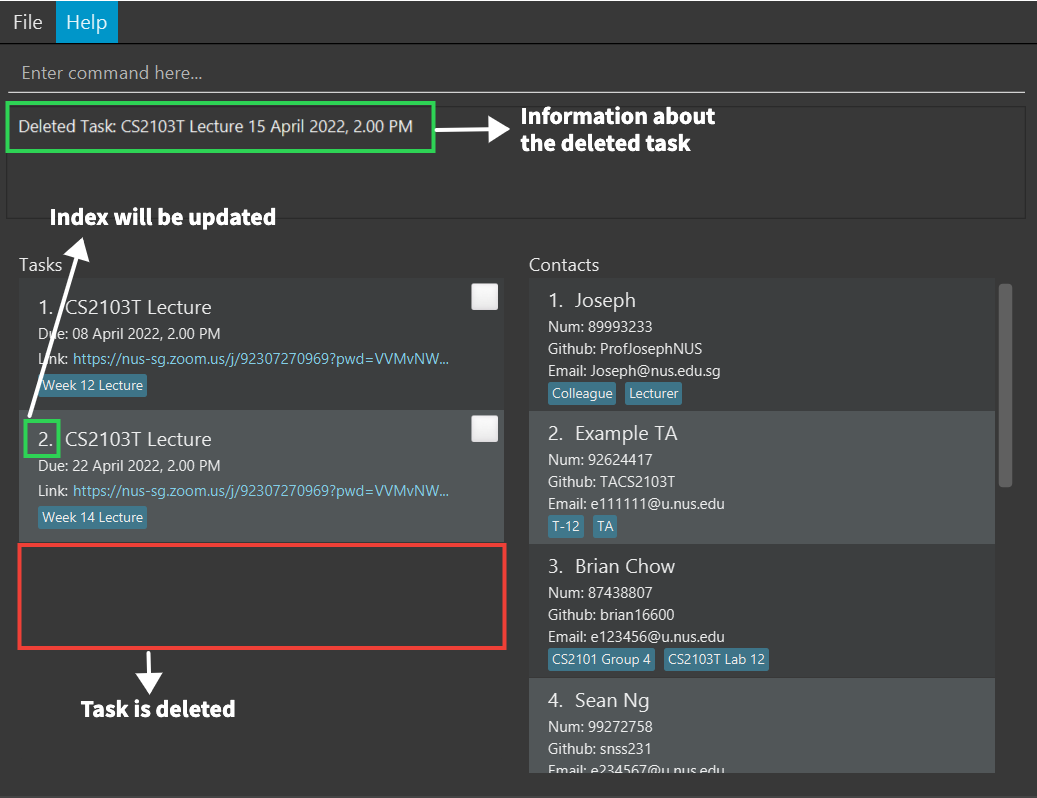
Generating the emails of all the contacts assigned to a task: gen
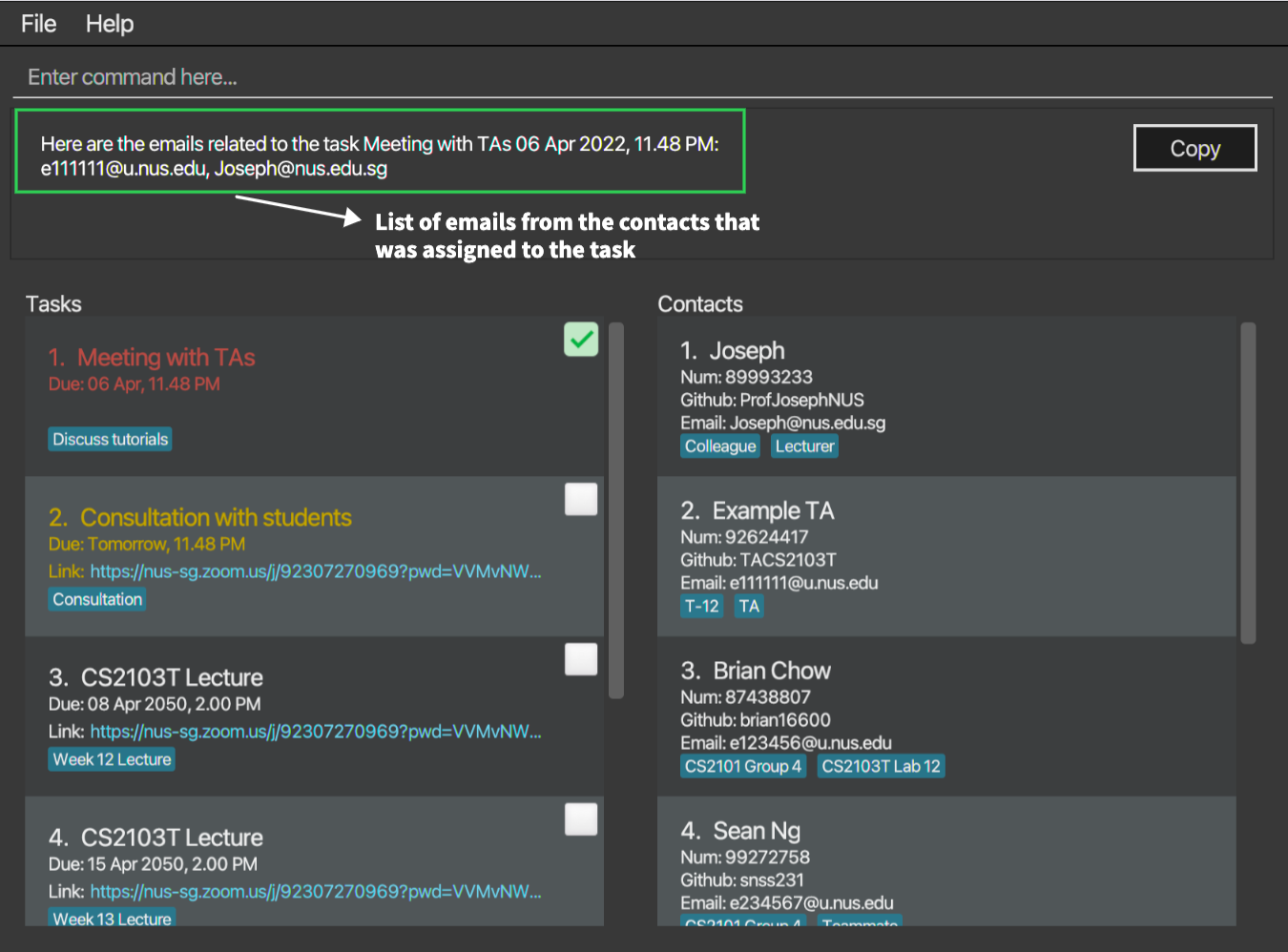
Displays all the emails of all the contacts assigned to the specified task and displays a button to copy the emails into your clipboard.
Format: gen INDEX
- Displays all the emails of the contacts assigned to the task at the specified
INDEX. - The index refers to the index number shown in the displayed task list.
Caution:
The index must be a positive integer 1, 2, 3, …
Examples:
-
gen 1displays all the emails of the contacts assigned to the task at index 1.
Other Features
Clearing all data : clear
Clears all contacts and tasks from NUS Classes.
Format: clear
Caution:
Be careful! This action is irreversible.
Exiting the program : exit
Exits the program.
Format: exit
Saving the data
NUS Classes data are saved in the hard disk automatically after any command that changes the data. There is no need to save manually.
Editing the data file
NUS Classes data are saved into two JSON files:
-
[JAR file location]/data/addressbook.jsonfor contact data -
[JAR file location]/data/tasklist.jsonfor task data
Advanced users are welcome to update data directly by editing these data files.
Caution:
If your changes to the data file makes its format invalid, NUS Classes will discard all data and start with an empty data file at the next run.
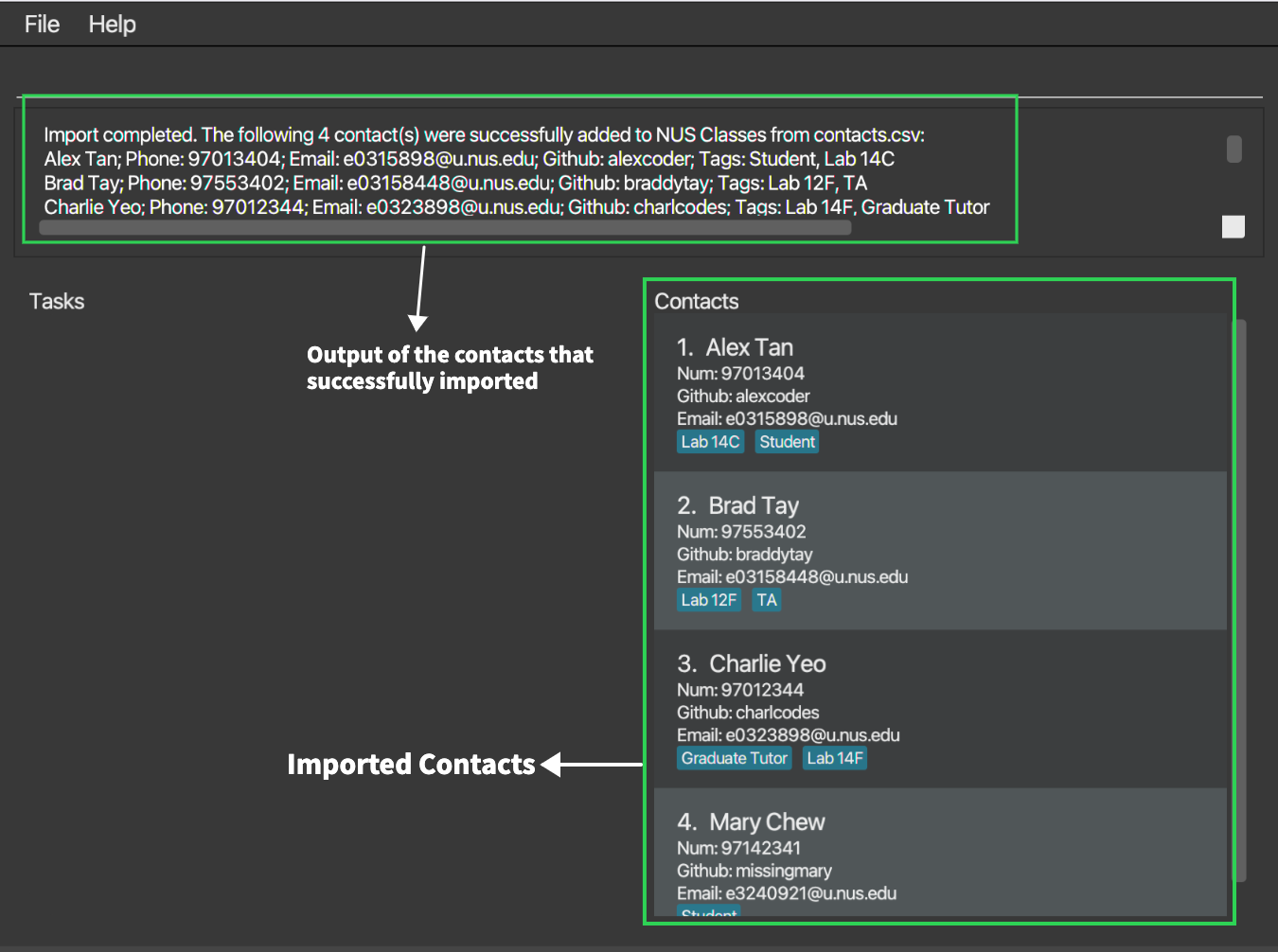
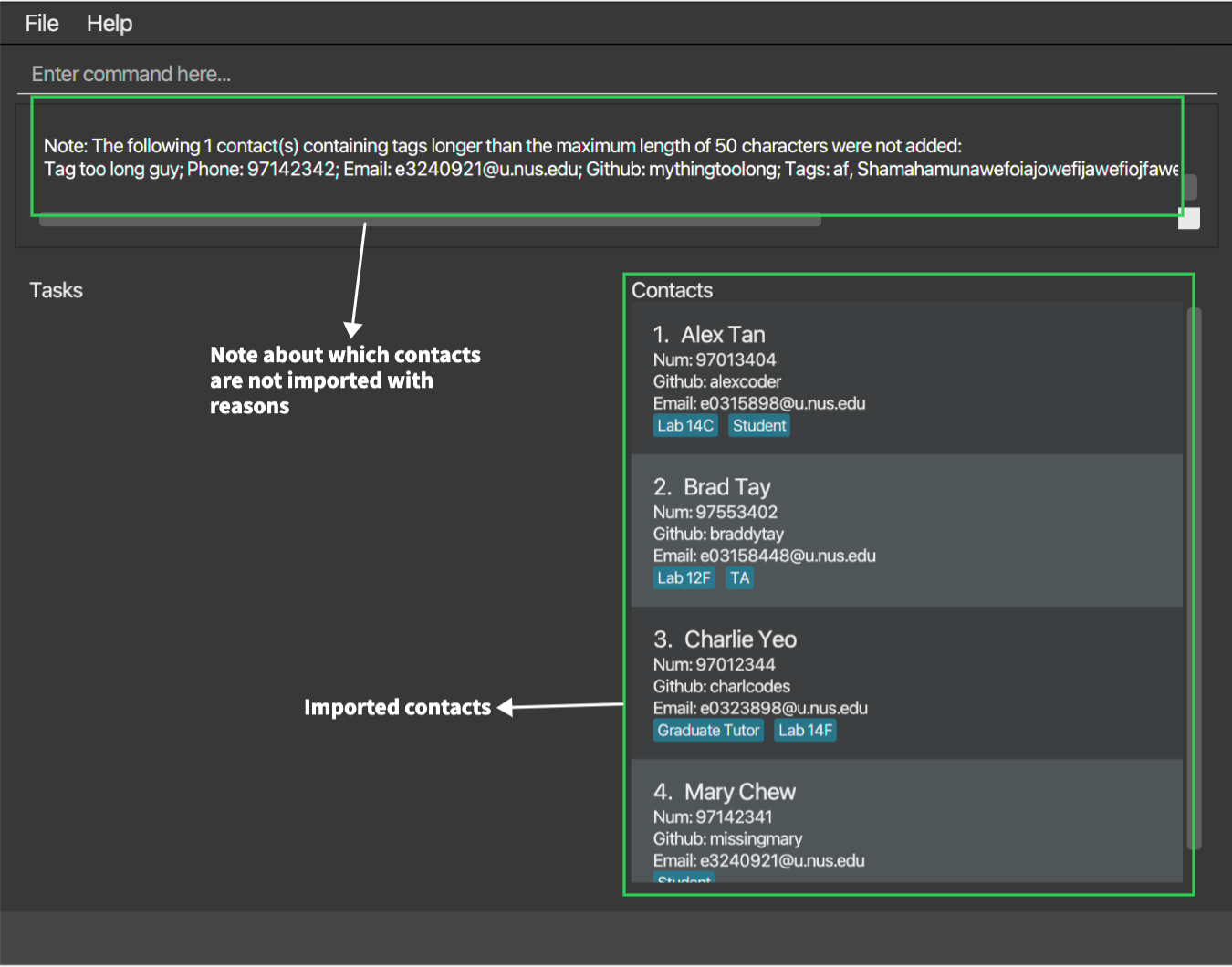
Importing contacts from a data file : import
Imports a list of contacts from a .csv file.
Format: import fp/FILEPATH
- The .csv file must contain the following 5 headers (Name, Phone, Email, Github, Tags). Any other headers will be ignored.
- If there are repeated headers, the first one will be considered.
- Tags in the .csv file should be separated with a
/character. - Invalid csv entries (e.g. due to invalid or duplicate fields) will be skipped, but valid entries will still be added.
Examples:
-
import fp/data/data.csv(macOS/Linux) /import fp/data\data.csv(Windows) will import all valid entries from thedata.csvfolder in the/datadirectory of the NUS Classes folder. -
import fp/contacts.csv(all supported platforms) will import all valid entries from thecontacts.csv filein the NUS Classes root folder.
User-friendly date display
Instead of always displaying dates in full (e.g. DD MM YYYY), our dates will be displayed based on the current day to be more user-friendly. Here’s a reference if you get confused:
| Displayed date | Explanation |
|---|---|
Today |
The current calendar day. |
Tomorrow |
The next calendar day. |
Day of week (e.g. Mon, Sat) |
The next occurrence of that day of week. Examples: - If today is 7 Apr, Thu, Tue will refer to the next Tuesday 12 Apr, Tue- If today is 4 Apr, Mon, Mon will refer to the next Monday 11 Apr, Mon
|
| Day and month (without year) | The day of the current calendar year (e.g. if the current calendar year is 2022, 11 Apr refers to 11 Apr 2022
|
| Day, month and year | - |
FAQ
Q: How do I transfer my data to another Computer?
A: Install the app in the other computer and overwrite the empty data file it creates with the file that contains the data of your previous NUS Classes home folder.
Q: Do I need to have extensive knowledge about Command Line Interface (CLI) to use this?
A: Nope! Simply refer to the format given in our Command Summary and our Features Section for guidance!
Q: I have further questions about NUS Classes. Where do I ask?
A: Open an Issue in our team’s Issue Tracker and we’ll look into it!
Q: Who do I contact if I want to be part of the Developer team?
A: You can email us at e0544441@u.nus.edu with the subject Interest in joining NUSClasses Developer Team
Q: What do I do to update the app?
A: Uninstall the current version of the app. Then, download the latest version of NUSClasses.jar from our GitHub releases
Prefix summary
| Prefix | Meaning | Constraints | Used in these commands: |
|---|---|---|---|
n/ |
Name of contact | Can only contain alphabetical letters and selected symbols like /, -, SPACE and '. |
addc, editc
|
p/ |
Phone number of contact OR Index of person assigned | For PHONENUMBER, it is only used in addc and editc. Only numbers are allowed and must contain at least 3 digits. For PERSONINDEX, it is only used in assign and unassign. Only valid, positive non-zero integers are allowed. |
addc, editc (as PHONENUMBER)assign, unassign (as PERSONINDEX) |
e/ |
Email of contact | An email address should begin with a local part containing alphanumeric characters and these special characters: +_.-. The local part cannot start with a special character. This should be followed by a ‘@’ and then a domain name. The domain name should be made up of domain labels separated by periods, and must end with a domain label at least 2 characters long and each domain label can only consist of alphanumeric characters, separated only by hyphens, if any. |
addc, editc
|
u/ |
Github Username of contact | Github usernames can only consist of alphanumeric characters or hyphens as per Github conventions. |
addc, editc
|
t/ |
Tag of either contact or task | A Task cannot contain two duplicate tags. |
addc, editc, addt, editt
|
INDEX |
Index of the task or contact specified |
INDEX refers to the index number as listed in NUS Classes, e.g. INDEX of 1 would mean the first task/contact. |
editc, deletec, editt, assign, unassign, view, mark, unmark, deletet, gen
|
KEYWORD |
Keyword of the task or contact. This can be the name or tag or tasks/contacts |
KEYWORD is case-insensitive. Orders of KEYWORDs do not matter. Only full words will be matched. |
findc, findt
|
tn/ |
Task name of the task | Two tasks with the same TASKNAME is valid. |
addc, editc
|
dt/ |
Date and time of the task. Can include both start and end times. | Needs to be in the format dd-mm-yyyy hhmm |
addt, editt, findt
|
z/ |
Link to online meeting/video conferencing. | Only valid links are accepted, with https:// or http://. |
addt, editt
|
r/ |
Interval and recurrence of the task. | Pre-set values like daily, weekly, monthly, quarterly and annually are accepted. Else, only positive non-zero integers are valid. |
addt |
all/ |
Shows all tasks in the list. | Only used in listt. |
listt |
c/ |
Shows all completed tasks in the list. | Only used in listt. |
listt |
nc/ |
Shows all uncompleted tasks in the list. | Only used in listt. |
listt |
Command summary
| Action | Format |
|---|---|
| Add Contact | addc n/NAME p/PHONE_NUMBER e/EMAIL u/GIT_USERNAME [t/TAG]… |
| List Contacts | listc |
| Edit Contact | editc INDEX [n/NAME] [p/PHONE_NUMBER] [e/EMAIL] [u/GITHUBUSERID] [t/TAG]… |
| Find Contacts | findc KEYWORD [MORE_KEYWORDS]… |
| Delete | deletec INDEX |
| Add Task | addt tn/TASKNAME dt/DATETIME[, ENDDATETIME] [t/TAG]… [z/LINK] [r/INTERVAL RECURRENCE] |
| List Tasks |
listt all\ or listt nc/ or listt c/
|
| Edit Task | editt INDEX [tn/TASKNAME] [dt/DATETIME, ENDDATETIME*] [z/LINK] [t/TAG] |
| Find Task by name or tag | findt KEYWORD [MORE_KEYWORDS]… |
| Find Task by Date | findt dt/DATETIME1, DATETIME2 |
| Assign contact To Task |
assign INDEX p/CONTACTINDEX |
| View contacts Assigned to Task |
view INDEX |
| Unassign contact From Task |
unassign INDEX p/CONTACTINDEX |
| Mark Task | mark INDEX |
| Unmark Task | unmark INDEX |
| Delete Task | deletet INDEX |
| Generating emails of all the contacts Assigned to task |
gen INDEX |
| Clear all data | clear |
| Import contacts | import fp/FILEPATH |
| Exit | exit |