Developer Guide
Table of Contents
- Acknowledgements
- Setting up, getting started
- Design
- Implementation
- Documentation, logging, testing, configuration, dev-ops
- Appendix: Requirements
- Appendix: Instructions for manual testing
- Prefix Summary
- Glossary
Acknowledgements
- PlantUML - open-source diagramming tool used for our architecture, class, sequence and activity diagrams.
- JUnit - Java testing framework used for most of our testing
- Gradle - Build automation tool
- Shadowjar - “A Gradle plugin for collapsing all dependencies and project code into a single Jar file.”
- Jackson - “JSON for Java” library
Setting up, getting started
Refer to the guide Setting up and getting started.
Description
NUS Classes is a desktop app for NUS Computing professors to manage their tasks and contacts. It includes task management features such as creating tasks, tagging tasks, assigning contacts to tasks, and marking tasks as complete or incomplete. It also includes contact management features such as finding contacts, assigning contacts to specific tasks and tagging contacts.
NUS Classes also provides a simple alert feature for tasks by displaying tasks in different color based on the urgency of the task. Tasks that are overdue are marked as red, whereas, tasks that are nearing deadline are marked as yellow.
NUS Classes is optimized for use via a Command Line Interface (CLI) while still having the benefits of a Graphical User Interface (GUI). Using NUS Classes can get your contact management tasks done faster than traditional GUI apps, saving time on otherwise tedious administrative tasks.
This Developer Guide is documented with the approach of developer-as-maintainer, explaining how the architecture and implementation of NUS Classes is done to allow for easy maintenance and modification if necessary. In this Developer Guide, you will find explanations as well as diagrams for the main components of NUS Classes at the high-level design as well as in-depth explanations on certain key features.
Design
 Tip: The
 .puml files used to create diagrams in this document can be found in the diagrams folder. Refer to the PlantUML Tutorial at se-edu/guides to learn how to create and edit diagrams.
Architecture
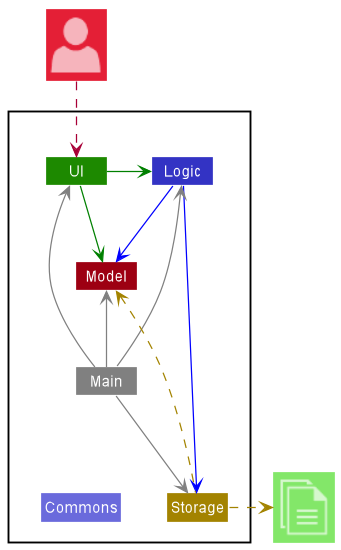
The Architecture Diagram given above explains the high-level design of the App.
Given below is a quick overview of main components and how they interact with each other.
Main components of the architecture
Main has two classes called Main and MainApp. It is responsible for,
- At app launch: Initializes the components in the correct sequence, and connects them up with each other.
- At shut down: Shuts down the components and invokes cleanup methods where necessary.
Commons represents a collection of classes used by multiple other components.
The rest of the App consists of four components.
-
UI: The UI of the App. -
Logic: The command executor. -
Model: Holds the data of the App in memory. -
Storage: Reads data from, and writes data to, the hard disk.
How the architecture components interact with each other
The Sequence Diagram below shows how the components interact with each other for the scenario where the user issues the command delete 1.
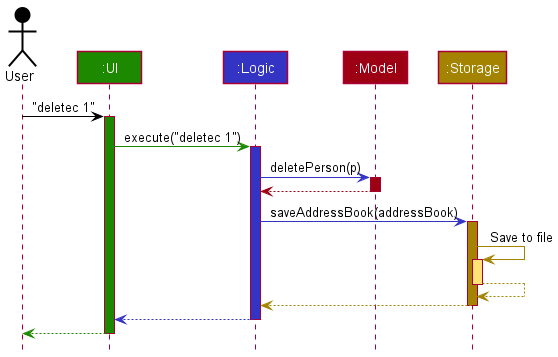
Each of the four main components (also shown in the diagram above),
- defines its API in an
interfacewith the same name as the Component. - implements its functionality using a concrete
{Component Name}Managerclass (which follows the corresponding APIinterfacementioned in the previous point.
For example, the Logic component defines its API in the Logic.java interface and implements its functionality using the LogicManager.java class which follows the Logic interface. Other components interact with a given component through its interface rather than the concrete class (reason: to prevent outside component’s being coupled to the implementation of a component), as illustrated in the (partial) class diagram below.
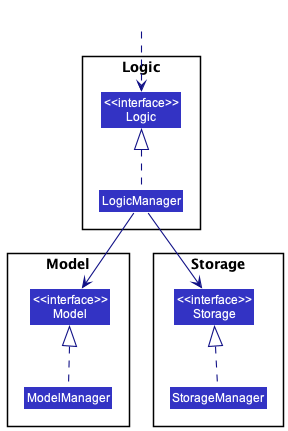
The sections below give more details of each component.
UI component
The API of this component is specified in Ui.java
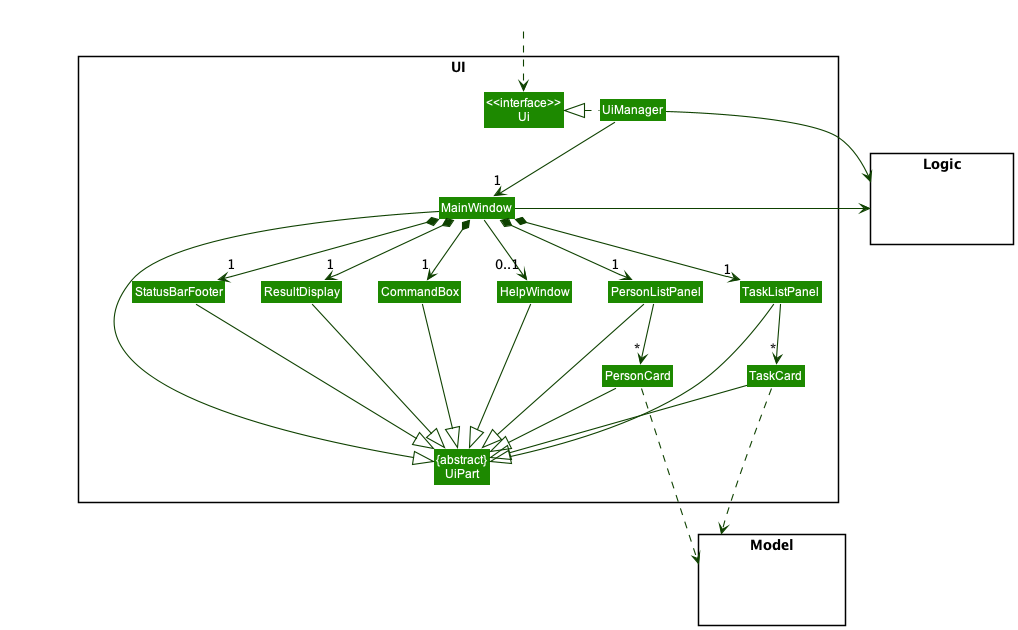
The UI consists of a MainWindow that is made up of parts e.g.CommandBox, ResultDisplay, PersonListPanel, StatusBarFooter etc. All these, including the MainWindow, inherit from the abstract UiPart class which captures the commonalities between classes that represent parts of the visible GUI.
The UI component uses the JavaFx UI framework. The layout of these UI parts are defined in matching .fxml files that are in the src/main/resources/view folder. For example, the layout of the MainWindow is specified in MainWindow.fxml
The UI component,
- executes user commands using the
Logiccomponent. - listens for changes to
Modeldata so that the UI can be updated with the modified data. - keeps a reference to the
Logiccomponent, because theUIrelies on theLogicto execute commands. - depends on some classes in the
Modelcomponent, as it displaysPersonobject residing in theModel.
Logic component
API : Logic.java
Here’s a (partial) class diagram of the Logic component:
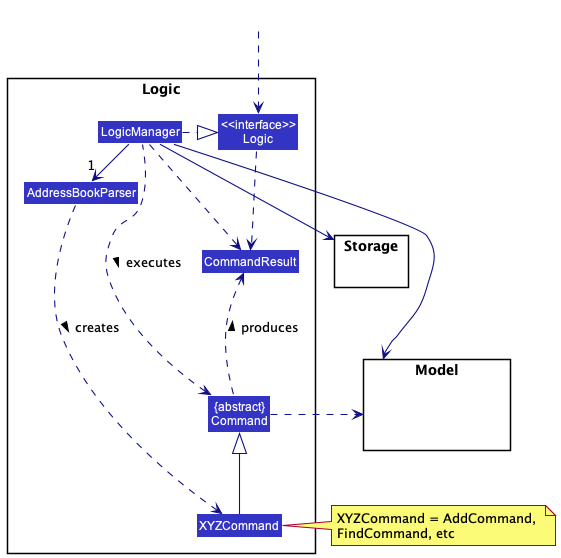
How the Logic component works:
- When
Logicis called upon to execute a command, it uses theAddressBookParserclass to parse the user command. - This results in a
Commandobject (more precisely, an object of one of its subclasses e.g.,AddCommand) which is executed by theLogicManager. - The command can communicate with the
Modelwhen it is executed (e.g. to add a person). - The result of the command execution is encapsulated as a
CommandResultobject which is returned back fromLogic.
The Sequence Diagram below illustrates the interactions within the Logic component for the execute("delete 1") API call.
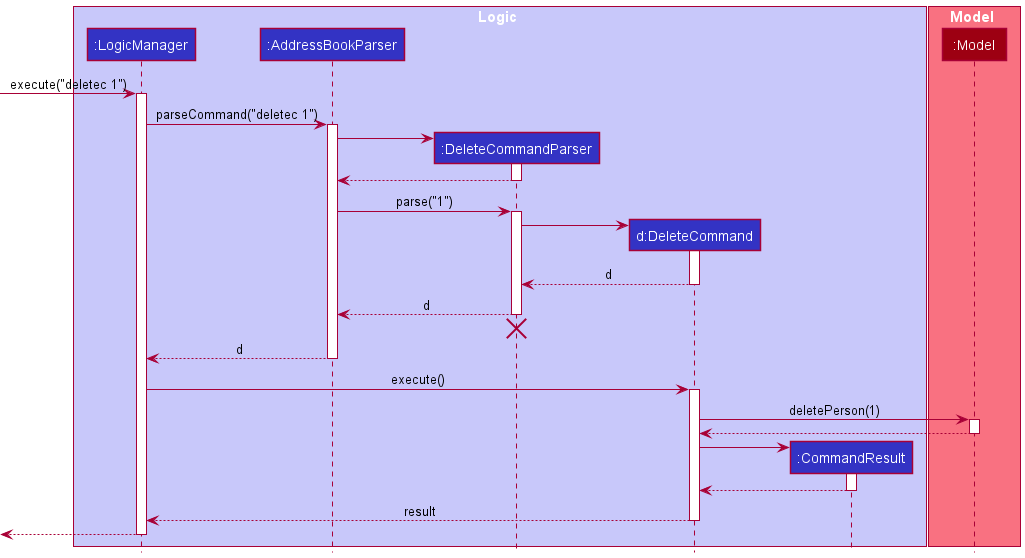
 Note: The lifeline for
 DeleteCommandParser should end at the destroy marker (X) but due to a limitation of PlantUML, the lifeline reaches the end of diagram.
Here are the other classes in Logic (omitted from the class diagram above) that are used for parsing a user command:
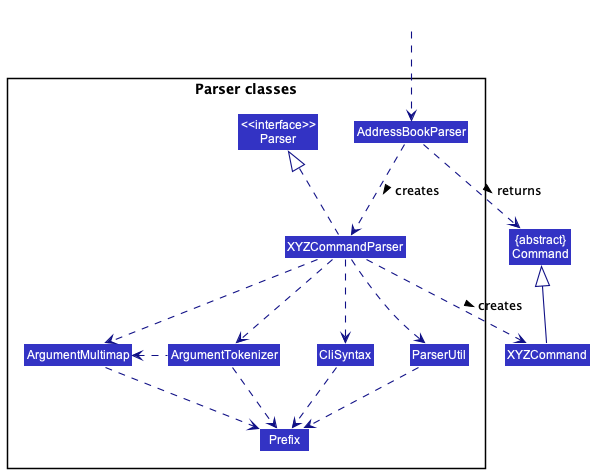
How the parsing works:
- When called upon to parse a user command, the
AddressBookParserclass creates anXYZCommandParser(XYZis a placeholder for the specific command name e.g.,AddCommandParser) which uses the other classes shown above to parse the user command and create aXYZCommandobject (e.g.,AddCommand) which theAddressBookParserreturns back as aCommandobject. - All
XYZCommandParserclasses (e.g.,AddCommandParser,DeleteCommandParser, …) inherit from theParserinterface so that they can be treated similarly where possible e.g, during testing.
Model component
API : Model.java
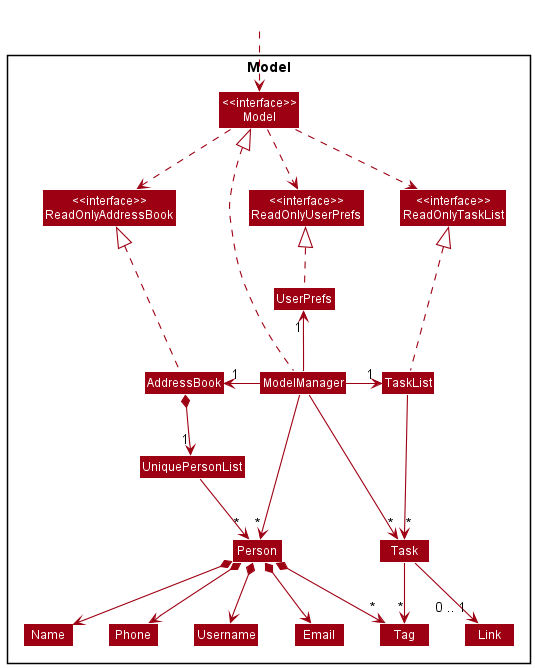
The Model component,
- stores the address book data i.e., all
Personobjects (which are contained in aUniquePersonListobject). - stores the task list data i.e., all ‘Task’ objects (which are contained in a
TaskListobject). - stores the currently ‘selected’
Personobjects (e.g., results of a search query) as a separate filtered list which is exposed to outsiders as an unmodifiableObservableList<Person>that can be ‘observed’ e.g. the UI can be bound to this list so that the UI automatically updates when somePerson’s data in the list changes. - stores the currently ‘selected’
Taskobjects (e.g. results of a search query) as a separate filtered list which is exposed to outsiders as an unmodifiableObservableList<Task>that can be ‘observed’ e.g. the UI can be bound to this list so that the UI automatically updates when someTask’s data in the list changes. - stores a
UserPrefobject that represents the user’s preferences. This is exposed to the outside as aReadOnlyUserPrefobjects. - does not depend on any of the other three components (as the
Modelrepresents data entities of the domain, they should make sense on their own without depending on other components)
Storage component
API : Storage.java
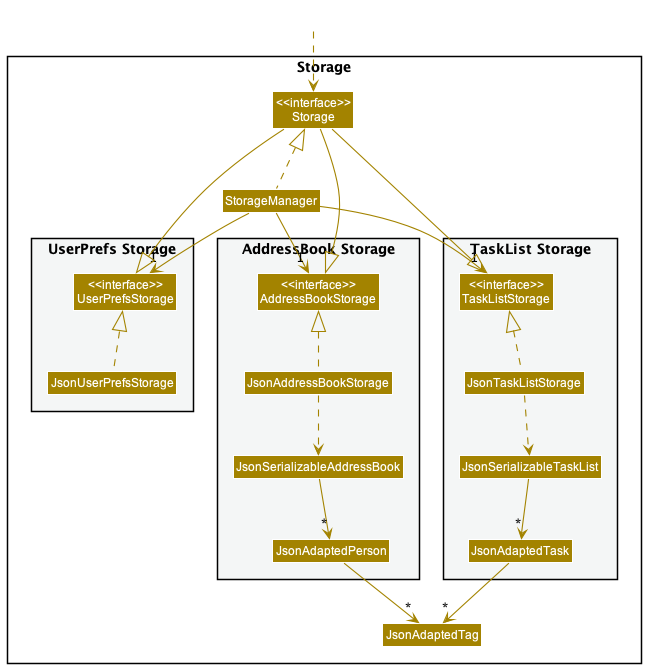
The Storage component,
- can save address book, task list and user preference data in json format, and read them back into corresponding objects.
- inherits from
AddressBookStorage,TaskListStorageandUserPrefStorage, which means it can be treated as any one of them (if only the functionality of one is needed). - depends on some classes in the
Modelcomponent (because theStoragecomponent’s job is to save/retrieve objects that belong to theModel)
Common classes
Classes used by multiple components are in the seedu.addressbook.commons package.
Implementation
This section describes some noteworthy details on how certain features are implemented.
Add Task feature
In NUS Classes, Tasks represent NUS Computing professor’s tasks that they have scheduled. Tasks include relevant information
such as TASKNAME, DATETIME, LINK for links to meetings/lectures/tutorials and TAGs for professors to keep their tasks organised.
When a Task is added to NUS Classes, the following features are implemented:
-
AddTaskCommandParser#parse()- Parses the compulsory fields ofTASKNAMEandDATETIMEas well as optional fields such asENDDATETIME,TAG,LINKandINTERVALwithREUCRRENCE. The parser obtains the relevant information to be added and creates aTaskwith the information parsed. -
AddTaskCommandwhich contains the relevant information for the newly addedTask. -
AddTaskCommand#execute()- ExecuteModelManager#addTask()by parsing in the task to be added and passing it toTaskList. -
TaskList#addTask()- Adds theTasktoTaskList.
Step 1: User enters the command, e.g. addt tn/Lesson dt/12-03-2022 1200. Once this command is parsed, it is handled by AddressBookParser#parseCommand(), which creates a AddTaskCommandParser object.
Step 2: AddTaskCommandParser#parse() is then called which parses the command. The parameters entered by the user, such as TASKNAME, DATETIME and optional parameters are parsed, and a new AddTaskCommand object is created which contains the parameters entered by the user.
Step 3: AddTaskCommand will then call AddTaskCommand#execute() which will execute the command. It will first create a Task based on the information contained and then it will add the newly created Task to TaskList via TaskList#addTask().
Step 4: Return either a success message with the added Task or a CommandException due to missing parameters or invalid parameters.
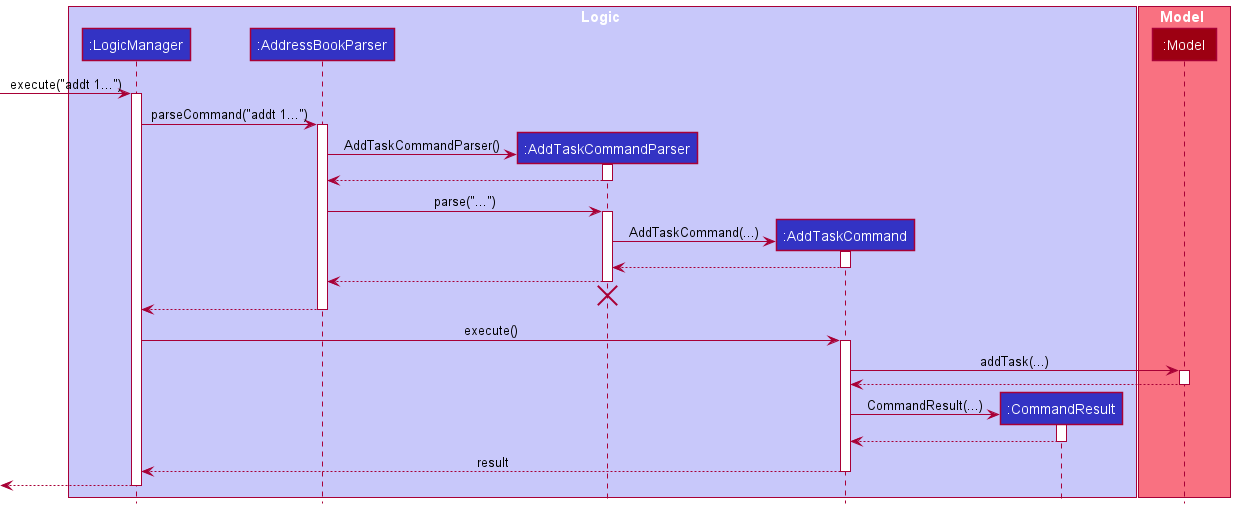
Note: The lifeline for AddTaskCommandParser should end at the destroy marker (X) but due to a limitation of PlantUML, the lifeline reaches the end of diagram.
Delete person feature
In NUS Classes, Tasks are entities that maintain a list of People that are associated with the task.
When a contact is deleted from the AddressBook, it is essential that the Tasks that contain that contact are updated to also remove the contact.
To implement this, upon every DeleteCommand execution, we call the TaskList::removePerson which iterate through all the tasks and remove the relevant Person from the tasks if present.
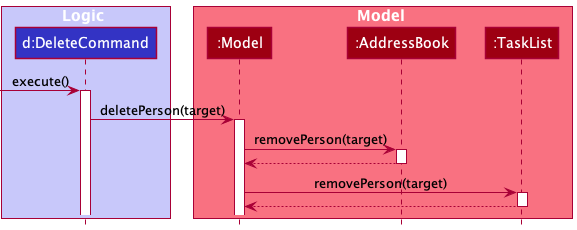
Design considerations:
Aspect: how relevant tasks are updated when a person is removed from the address book
-
Alternative 1 (current choice): Iterate through all tasks to remove the relevant person.
- Pros: Easy to implement.
- Cons: May have performance issues given a large list of tasks
-
Alternative 2: Add a reference from each Person to the Tasks they are associated with. When a person is deleted, reference all the tasks through the
Personobject to update the tasks.- Pros: May see some performance benefit (not necessary to iterate through all the tasks upon each
DeleteCommand) - Cons: More fragile code due to circular dependency (
Persondepends onTask). Not often that a Professor will delete a contact (student or tutor) in the course of a module.
- Pros: May see some performance benefit (not necessary to iterate through all the tasks upon each
Delete Task feature
Delete task feature implements the following operations:
-
DeleteTaskCommandParser#parse()— Parse the index number from user command toDeleteTaskCommandto get the task to be deleted. -
DeleteTaskCommand#execute()— ExecuteModelManager#deleteTask()by parsing in the task to be deleted. -
ModelManager#deleteTask()— ExecuteTaskList#deleteCurrTask()by parsing in the task to be deleted. -
TaskList#deleteCurrTask()— Deletes the task from the TaskList stored here.
Step 1: User will enter the command deletet 1 to delete the first task.
Once user parses in the command, it will be handled by AddressBookParser#parseCommand(), then calling of DeleteTaskCommandParser#parse()
to create DeleteTaskCommand and execute to delete the task from the task list.
The Sequence Diagram below illustrates the interactions of how the delete task feature works.
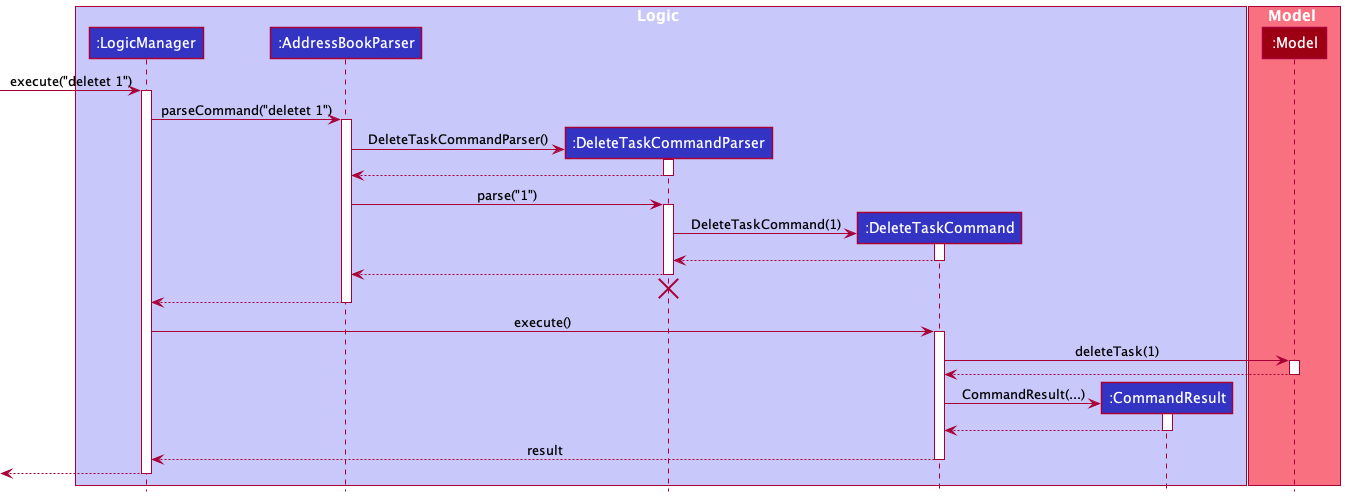
Note: The lifeline for DeleteTaskCommandParser should end at the destroy marker (X) but due to a limitation of PlantUML, the lifeline reaches the end of diagram.
Step 2: Outcome after executing DeleteTaskCommand
Execution flow of Activity Diagram:
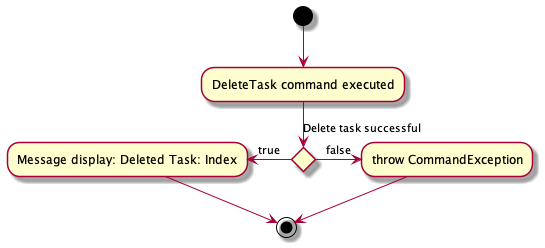
Design considerations:
Aspect: How delete task executes:
-
Alternative 1 (current choice): Delete task based on the index shown.
- Pros: Easy to implement.
- Cons: Users have to scroll through task list to look for task index number.
-
Alternative 2: Delete task based on the task name.
- Pros: Users just have to enter the task name.
- Cons: Checks are needed to ensure that users entered the correct spelling and spacing of the task name
Edit Task feature
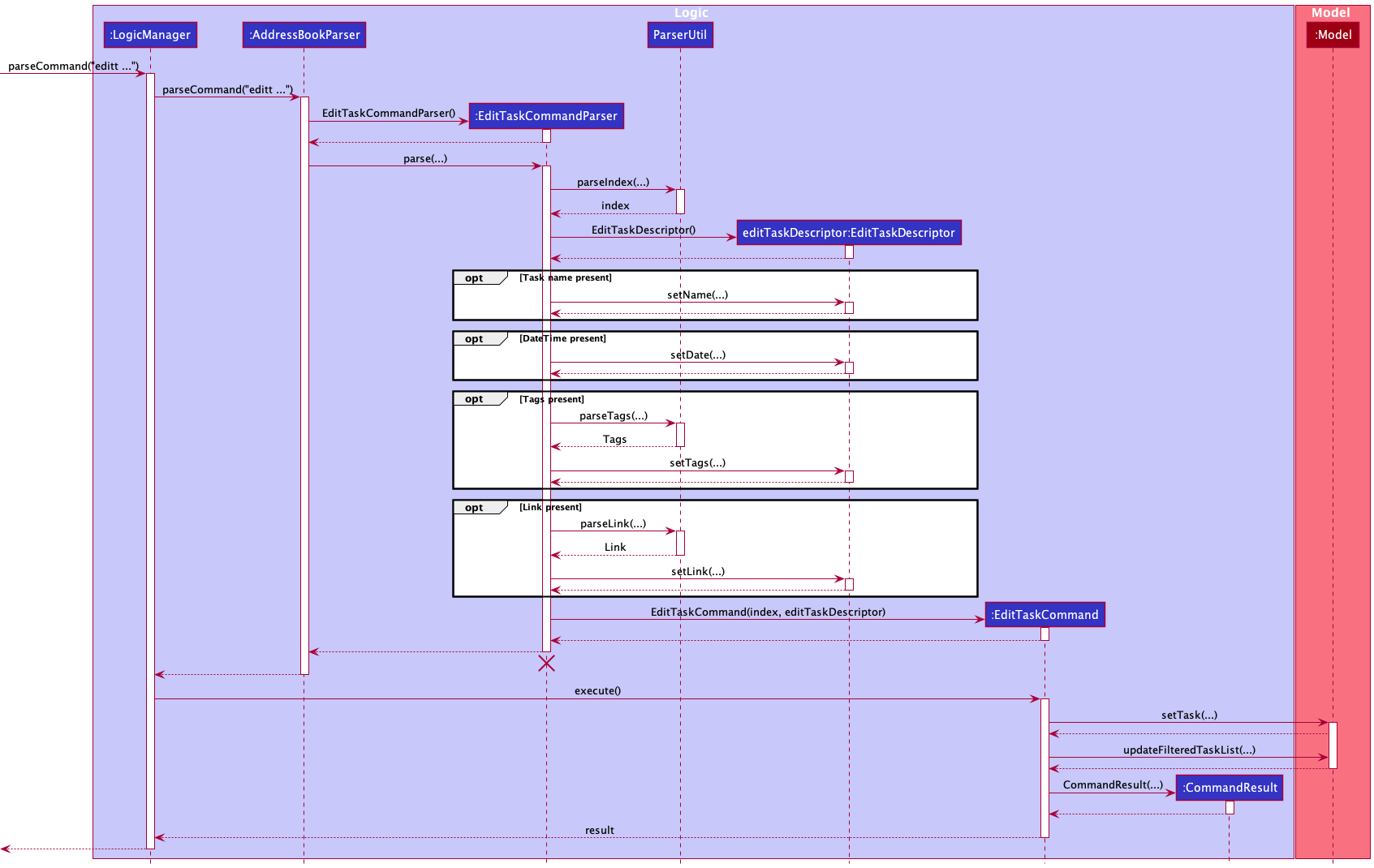
Edit task feature implements the following operations:
-
EditTaskCommandParser#parse()— Parse the command such as index of the task to edit and which information to update. -
EditTaskCommand#execute()— ExecuteModelManager#setTask()by parsing in the task to be edited and the updated version of the task. -
EditTaskDescriptor#setName()— Set the edited task name toEditTaskDescriptor -
EditTaskDescriptor#setDate()— Set the edited datetime toEditTaskDescriptor -
EditTaskDescriptor#setTags()— Set the edited tags toEditTaskDescriptor -
ParseUtil#parseIndex()— Parse to get the index number of the task -
ModelManager#setTask()— Update the task information. -
ModelManager#updateFilteredTaskList()— Updates the filter of the filtered task list to filter by the given predicate.
Step 1: User parses in command. For example, editt 1 tn/Teach CS2103T dt/12-03-2022 1330 z/https://zoomlink.com t/Homework
Once user parses in the command, it will be handled by AddressBookParser#parseCommand(), then calling of EditTaskCommandParser#parse()
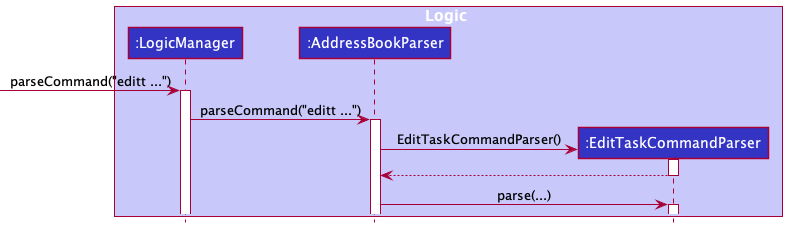
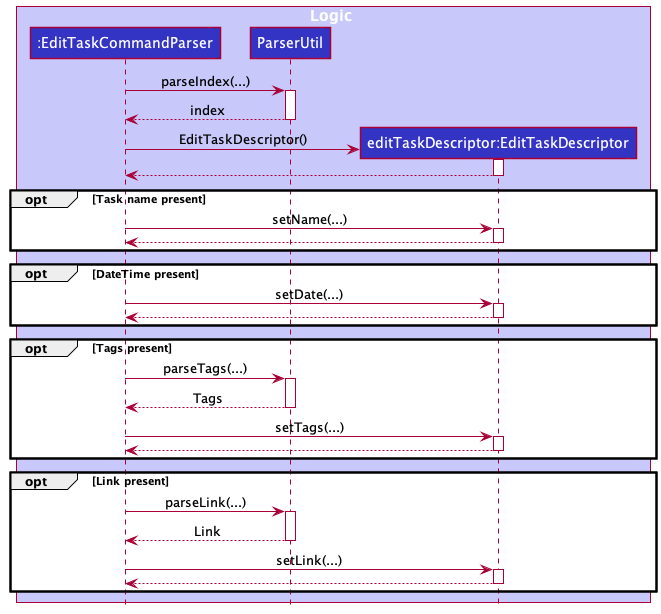
Step 2: EditTaskCommandParser will call ParseUtil#parseIndex() to get the task index.
Then EditTaskCommandParser will create EditTaskDescriptor editTaskDescriptor. EditTaskCommandParser will check if the
task name, datetime, link or tag prefix exist. It is optional to not have all the prefixes as user may not want to change certain field.
For each prefix in the command, it will set the value to editTaskDescriptor.
Step 3: EditTaskCommandParser will create EditTaskCommand, parse in index and editTaskDescriptor
EditTaskCommand will start to execute and call ModelManager#setTask and ModelManager#updateFilteredTaskList to update
the task and task list.
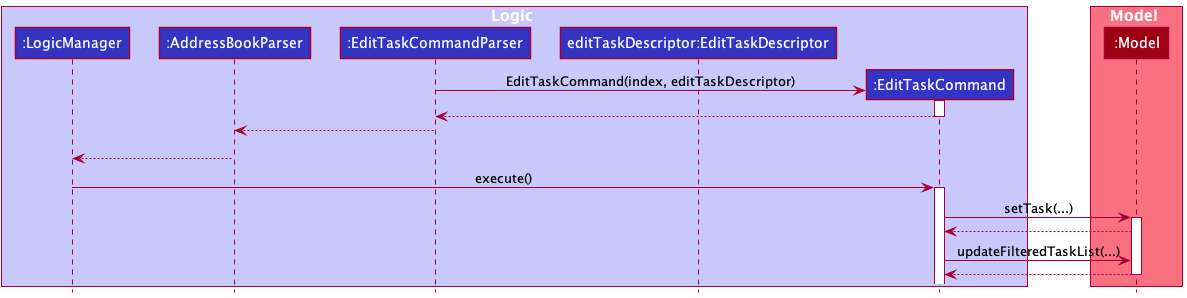
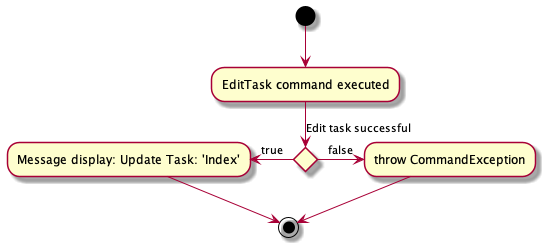
Step 4: Lastly return the result. Possible outcome from the result.
- Outcome 1: Successfully updated task.
- Outcome 2: Throw CommandException due to index out of range, invalid parameters or no valid changes to
Task.
The Sequence Diagram below illustrates the overall interactions of how the edit task feature work.
View Task feature
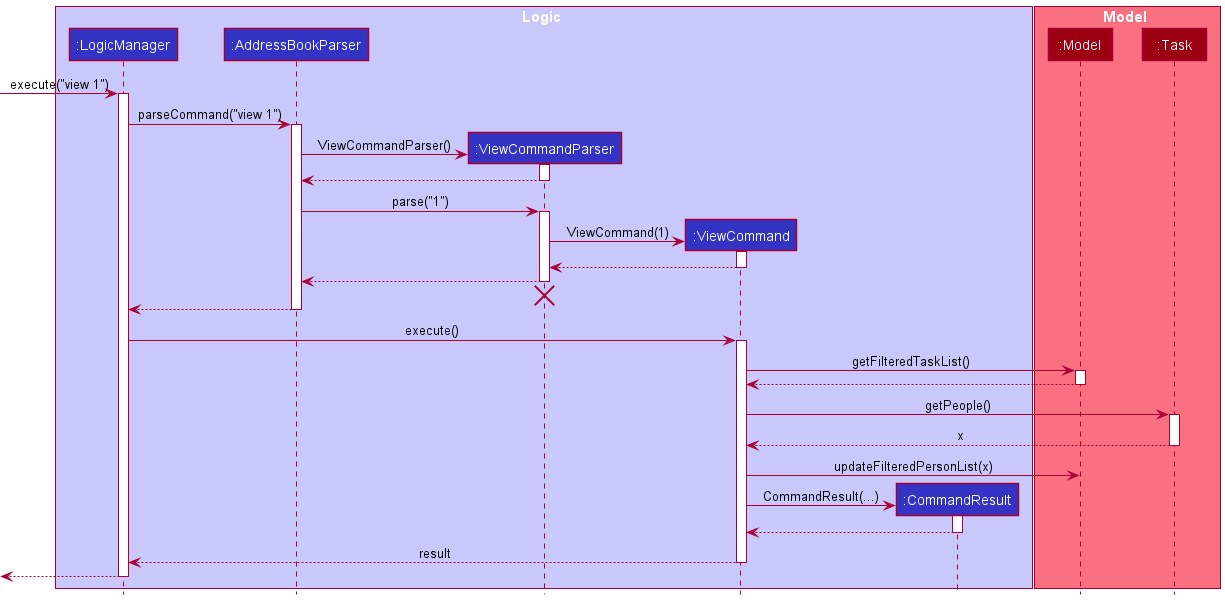
The view task mechanism is facilitated by ViewCommand, ViewCommandParser, ModelManager and Task. Additionally, it implements the following operation:
-
ViewCommandParser#parse()— Parses the arguments provided by the users into a command to be executed. -
ViewCommand#execute()— Executes the operations required to display the people associated with a specific task. -
ModelManager#getFilteredTaskList()— Gets the task list currently displayed as output to the user. -
ModelManager#updateFilteredPersonList()— Updates the person list displayed as output to the user by providing the argument with a list of people. -
Task#getPeople()— Gets a list of people associated to a task.
Given below is an example usage scenario and how the view task mechanism behaves at each step.
Step 1: The user will enter the command view 1 to view the people associated with the first task. The command will be handled by
AddressBookParser#parseCommand() which will create a ViewCommandParser object.
Step 2. The AddressBookParser will call ViewCommandParser#parse() which will parse the command, returning a ViewCommand to be executed.
Step 3. The LogicManager will call ViewCommand#execute() which will execute the command. It will retrieve the task list
by calling ModelManager#getFilteredTaskList() and retrieve the first Task from this list.
Step 4: Afterwards, the ViewCommand will call Task#getPeople() to obtain the list of people associated with the Task and pass this list as an argument to
ModelManager#updateFilteredPersonList() which will proceed to update the UI.
The following sequence diagram shows how the view task operation works:
Note: The lifeline for EditTaskCommandParser should end at the destroy marker (X) but due to a limitation of PlantUML, the lifeline reaches the end of diagram.
Design considerations:
Aspect: How should the results be displayed in the Contact column when no contacts are associated with the task:
-
Alternative 1 (current choice): Continue displaying the current list of people.
- Pros: Reduce commands required by user to populate and use the column for input.
- Cons: May be confusing to user.
-
Alternative 2: Display an empty list.
- Pros: Clearly inform the users that the task has no people associate with it.
- Cons: Requires more commands by the user in order to use the column again.
Find Task feature
The find task mechanism is facilitated by FindTaskCommand, FilterCommandParser, ModelManager and Task. Additionally, it implements the following operation:
-
FilterCommandParser#parse()— Parses the arguments provided by the users into a command to be executed. -
FindTaskCommand#execute()— Executes the operations required to display the task that matches the search keywords. -
ModelManager#getFilteredTaskList()— Gets the task list currently displayed as output to the user. -
ModelManager#updateFilteredTaskList()— Updates the task list displayed as output to the user by providing the argument with a list of task.
Given below is an example usage scenario and how the view task mechanism behaves at each step.
Step 1. The user will enter the command findt brush to find all tasks that have the keyword brush. The command will be handled by
AddressBookParser#parseCommand() which will create a FilterCommandParser object.
Step 2. The AddressBookParser will call FilterCommandParser#parse() which will parse the command, returning a FindTaskCommand to be executed.
Step 3. The LogicManager will call FindTaskCommand#execute() which will execute the command. It will update the existing task list to only show
the task with the search keywords by calling ModelManager#updateFilteredTaskList().
Step 4. Finally, the FindTaskCommand will return the command result of how many tasks were found, by calling ModelManager#getFilteredTaskList().size()
Documentation, logging, testing, configuration, dev-ops
Appendix: Requirements
Product scope
Target user profile:
- NUS computing professors that:
- need to manage a large number of contacts
- need to categorise these contacts (e.g. by role - Teaching Assistant, Student - or by class groups)
- need to keep track of relevant contact details (e.g. Github username, email)
- need to keep track of the people involved in each task
- prefer desktop apps over other types
- prefers typing to mouse interactions
- is reasonably comfortable using CLI apps
Value proposition: NUS computing professors can easily organise their module-related tasks and relevant contact details in one place, boosting their efficiency and productivity.
User stories
Priorities: High (must have) - * * *, Medium (nice to have) - * *, Low (unlikely to have) - *
| Priority | As a … | I want to … | So that I can… |
|---|---|---|---|
* * * |
new user | see usage instructions | refer to instructions when I forget how to use the App |
* * * |
user | add a new person | manage my contacts more efficiently |
* * * |
user | add a new task | manage my schedule more efficiently |
* * * |
user | delete a person | remove entries that I no longer need |
* * * |
user | delete a task | remove the task I no longer need |
* * * |
user | find a person by name | locate details of persons without having to go through the entire list |
* * * |
user | assign people to tasks | easily keep track of the people involved in a task |
* * * |
user | unassign people from tasks | easily maintain the list of people involved in a task |
* * * |
user | find a person by name | locate details of persons without having to go through the entire list |
* * * |
user | tag my contacts | organize the contacts to look neater |
* * * |
user | filter my tasks by name or date | locate tasks without having to go through the entire list |
* * * |
user | view contact details | lookup important contact information |
* * * |
user | tag tasks | organise my tasks |
* * * |
user | assign and remove the task to/from my contacts | allocate my tasks to the specific contact as needed |
* * * |
user | view the contacts assigned to a task | lookup the information of the people assigned to a task |
* * |
lecturer | store the meeting links of my tasks | easily access the meetings when I need to |
* * |
user | import contact data from a csv file | easily initialize my contacts without having to type hundreds of commands |
* * |
user | generate emails of all the contacts assigned to a task | easily transfer the emails to my preferred email client to contact them |
* * |
computing professor | get a contact’s Github username | lookup their Github profiles |
* * |
professor | group the students based on module | know which student is under which module |
* |
professor | add graded component of the module | track students’ performance of the module |
Use cases
(For all use cases below, the System is NUS Classes and the Actor is the user, unless specified otherwise)
Use case: UC01 - Delete a person
MSS
- User requests to list persons
- NUS Classes shows a list of persons
- User requests to delete a specific person in the list
- NUS Classes deletes the person
Use case ends.
Extensions
- 2a. The list is empty.
- Use case ends.
- 3a. The given index is invalid.
- 3a1. NUS Classes shows an error message.
- Use case resumes from step 3.
Use case: UC02 - Import contacts
MSS
- User requests to import contacts, providing the filepath of the source data file.
- NUS Classes adds the contacts to the contact list.
Use case ends.
Extensions
- 1a. NUS Classes can’t find the file
- 1a1. NUS Classes shows an error message.
- Use case ends.
- 1b. NUS Classes detects that the file is of invalid format or is a directory
- 1b1. NUS Classes shows an error message.
- Use case ends.
- 1c. NUS Classes detects that some entries have invalid fields
- 1c1. NUS Classes informs the user of the invalid fields and the reason they are invalid
- 1c2. User fixes these fields
- Use case continues from step 1.
Use case: UC03 - See all scheduled tasks
MSS
- User requests to see all tasks
- NUS Classes shows a list of scheduled tasks
Use case ends.
Use case: UC04 - Schedule a task with a group
MSS
- User requests to create a task
- NUS Classes creates the task
- User requests to assign a contact to the task
- NUS Classes assigns the contact to the task
Use case ends.
Extensions
- 1a. NUS Classes detects that compulsory arguments are omitted (e.g. name or date-time)
- 1a1. NUS Classes shows an error message.
- Use case ends.
- 3a. NUS Classes detects that invalid task or contact index is provided
- 3a1. NUS Classes shows an error message.
- Use case continues from step 3.
- 4a. User wishes to assign more contacts to the task
- Use case continues from step 3.
Use case: UC05 - Update a task
MSS
- User requests to see all tasks (UC03)
- User requests to update a task, providing the details of the fields to be edited and the index of the task
- NUS Classes updates the task
Use case ends.
Extensions
- 2a. NUS Classes detects that the index provided is out of bounds/invalid
- 2a1. NUS Classes shows an error message.
- Use case ends.
- 2b. NUS Classes detects that the fields provided are invalid
- 2b1. NUS Classes shows an error message.
- Use case ends.
- 2c. NUS Classes detects that no optional arguments are provided
- 2c1. NUS Classes shows an error message.
- Use case ends.
Use case: UC06 - Generate emails of all contacts assigned to a task
MSS
- User requests to see all tasks (UC03)
- User requests to generate the emails of all contacts a task, and provides the index of the task
- NUS Classes displays the emails and provides a button to copy the emails.
Use case ends.
Extensions
- 1a. NUS Classes doesn’t have any tasks created
- 1a1. NUS Classes shows an error message.
- Use case ends.
- 2a. NUS Classes detects that the index provided is invalid
- 2a1. NUS Classes shows an error message.
- Use case ends.
- 3a. User clicks the button to copy the emails.
- 3a1. User pastes the emails into their preferred email application
- Use case ends.
Use case: UC07 - Searching for tasks by name and/or tags
MSS
- User specifies the keyword to search for.
- NUS Classes displays the tasks whose names and/or tags match the keyword.
Use case ends.
Use case: UC08 - Searching for tasks by date range
MSS
- User specifies the date range to search for.
- NUS Classes displays the tasks whose date(s) fit within the range.
Use case ends.
Non-Functional Requirements
- Should work on any mainstream OS as long as it has Java
11or above installed. - Should be able to hold up to 1000 persons and/or tasks without a noticeable sluggishness in performance for typical usage.
- A user with above average typing speed for regular English text (i.e. not code, not system admin commands) should be able to accomplish most of the tasks faster using commands than using the mouse.
- App should not exit or shut down without user explicit command.
- App should display relevant information within 2 seconds after user enter command.
- The information stored should not change without user explicit command.
- Should be able to download and use without installer.
- Should be able to work and store information without any third party database system.
Appendix: Instructions for manual testing
Given below are instructions to test the app manually.
Launch and shutdown
-
Initial launch
-
Download the jar file and copy into an empty folder
-
Double-click the jar file Expected: Shows the GUI with a set of sample contacts and tasks.
-
-
Shutdown
- Click the ‘close’ button or execute the
exitcommand Expected: The app shuts down
- Click the ‘close’ button or execute the
Deleting a person
-
Deleting a person while all persons are being shown
-
Prerequisites: List all persons using the
listcommand. Multiple persons in the list. -
Test case:
delete 1
Expected: First contact is deleted from the list. Details of the deleted contact shown in the status message. -
Test case:
delete 0
Expected: No person is deleted. Error details shown in the status message. Status bar remains the same. -
Other incorrect delete commands to try:
delete,delete x,...(where x is larger than the list size)
Expected: Similar to previous.
-
Saving data
- Data (contacts and tasks) should be automatically saved when the app is shut down.
- Test case:
addc n/Test Person p/123456 e/e1234@u.nus.edu u/test123, thenexitand restart the app.
Expected: The created contact is saved and is shown. - Test case:
addt tn/Test task dt/12-12-2020 1234, thenexitand restart the app.
Expected: The created task is saved and is shown.
- Test case:
Importing contacts from a .csv file
- The import feature should work with a valid .csv file.
- Test case:
- Create a .csv file with the filename
test.csvusing a text editor and place it into the NUS Classes folder. - The .csv file should contain the headers
Name,Phone,Github,Email,Tags - On the next line, add the sample contact
Alex Bean,91234567,alexbean@gmail.com,Lab 12F/Student - Execute the command
import fp/test.csv - The NUS Classes should inform you that the contact has been successfully imported, and the contact is displayed in the contact list.
- Create a .csv file with the filename
- For advanced testing, you may rename the file and place it in a subdirectory.
- make sure to specify the filepath relative to the jar directory, specified according your OS’s file system.
- Test case:
Prefix summary
| Prefix | Meaning | Constraints | Used in these commands |
|---|---|---|---|
n/ |
Name of contact | Can only contain alphabetical letters and selected symbols like /, -, SPACE and '. |
addc, editc
|
p/ |
Phone number of contact OR Index of person assigned | For PHONENUMBER, it is only used in addc and editc. Only numbers are allowed and must contain at least 3 digits. For PERSONINDEX, it is only used in assign and unassign. Only valid, positive non-zero integers are allowed. |
addc, editc (as PHONENUMBER)assign, unassign (as PERSONINDEX) |
e/ |
Email of contact | An email address should begin with a local part containing alphanumeric characters and these special characters: +_.-. The local part cannot start with a special character. This should be followed by a ‘@’ and then a domain name. The domain name should be made up of domain labels separated by periods, and must end with a domain label at least 2 characters long and each domain label can only consist of alphanumeric characters, separated only by hyphens, if any. |
addc, editc
|
u/ |
Github Username of contact | Github usernames can only consist of alphanumeric characters or hyphens as per Github conventions. |
addc, editc
|
t/ |
Tag of either contact or task | A Task cannot contain two duplicate tags. |
addc, editc, addt, editt
|
INDEX |
Index of the task or contact specified |
INDEX refers to the index number as listed in NUS Classes, e.g. INDEX of 1 would mean the first task/contact. |
editc, deletec, editt, assign, unassign, view, mark, unmark, deletet, gen
|
KEYWORD |
Keyword of the task or contact. This can be the name or tag or tasks/contacts |
KEYWORD is case-insensitive. Orders of KEYWORDs do not matter. Only full words will be matched. |
findc, findt
|
tn/ |
Task name of the task | Two tasks with the same TASKNAME is valid. |
addc, editc
|
dt/ |
Date and time of the task. Can include both start and end times. | Needs to be in the format dd-mm-yyyy hhmm |
addt, editt, findt
|
z/ |
Link to online meeting/video conferencing. | Only valid links are accepted, with https:// or http://. |
addt, editt
|
r/ |
Interval and recurrence of the task. | Pre-set values like daily, weekly, monthly, quarterly and annually are accepted. Else, only positive non-zero integers are valid. |
addt |
all/ |
Shows all tasks in the list. | Only used in listt. |
listt |
c/ |
Shows all completed tasks in the list. | Only used in listt. |
listt |
nc/ |
Shows all uncompleted tasks in the list. | Only used in listt. |
listt |
Glossary
| Term | Meaning |
|---|---|
| API | Application Programming Interface. Enables different systems to interact with each other programmatically |
| .csv | A plain text file containing a list of data, separated by commas |
| MSS | Main Success Scenario, the action steps of a typical scenario where the goal is delivered |
| NUS | National University of Singapore |
| NUS Classes | The name of the application |
| Mainstream OS | Windows, Linux, MacOS |
| UI | User Interface, the means by which the user interacts with the system |
| CLI | Command-line interface, which processes text-based commands from the user |
| GUI | Graphical user interface, a visual way of interacting with a computer using items such as windows, icons and menus |
| Jar | A JAR (Java ARchive) is a package file format typically used to aggregate many Java class files and associated metadata and resources (text, images, etc.) into one file for distribution. |